

This article will cover a troubleshooting method for the ‘Failed to establish TLS/SSL connection’ error that can occur during enrollment of the Advanced Insights for Intune Client
After successfully installing the Advanced Insights for Intune Client, enrollment must succeed before the device appears in the Cloud Portal, along with its inventory data.
A common issue during enrollment is a failure to establish a TLS/SSL connection because of certificate issues as a result of TLS inspection.
Determine if you are affected #
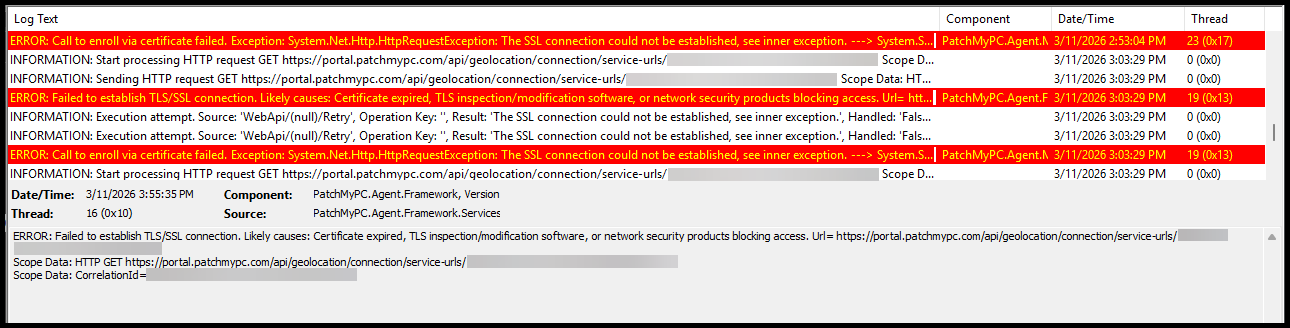
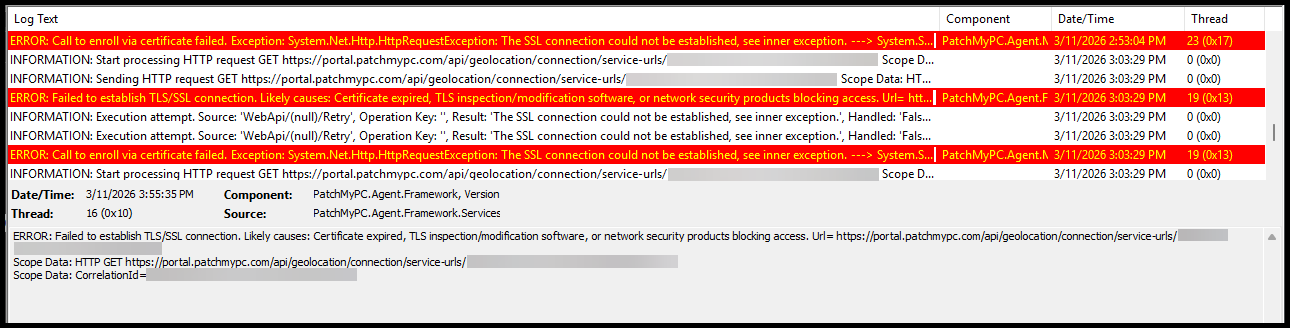
If you are affected by this issue, you will see the following errors in the Client Log file
C:\ProgramData\PatchMyPC\Logs\Client.logERROR: Failed to establish TLS/SSL connection. Likely causes: Certificate expired, TLS inspection/modification software, or network security products blocking access. Url= https://portal.patchmypc.com/api/geolocation/connection/service-urls/
ERROR: Call to enroll via certificate failed.
Exception: System.Net.Http.HttpRequestException: The SSL connection could not be established, see inner exception.
—> System.Security.Authentication.AuthenticationException: The remote certificate was rejected by the provided RemoteCertificateValidationCallback.
at System.Net.Security.SslStream.CompleteHandshake(SslAuthenticationOptions sslAuthenticationOptions)
at System.Net.Security.SslStream.ForceAuthenticationAsync[TIOAdapter](Boolean receiveFirst, Byte[] reAuthenticationData, CancellationToken cancellationToken)
at System.Net.Http.ConnectHelper.EstablishSslConnectionAsync(SslClientAuthenticationOptions sslOptions, HttpRequestMessage request, Boolean async, Stream stream, CancellationToken cancellationToken)
— End of inner exception stack trace —
Check what remote certificate is returned #
We have a PowerShell script that you can run from a Client device to verify if TLS inspection is occurring and what remote certificate is being presented.
Additional Information #
The Patch My PC Client runs under the SYSTEM context. You need to run the PowerShell script under the SYSTEM context as well.
To accomplish this, you can use: PsExec
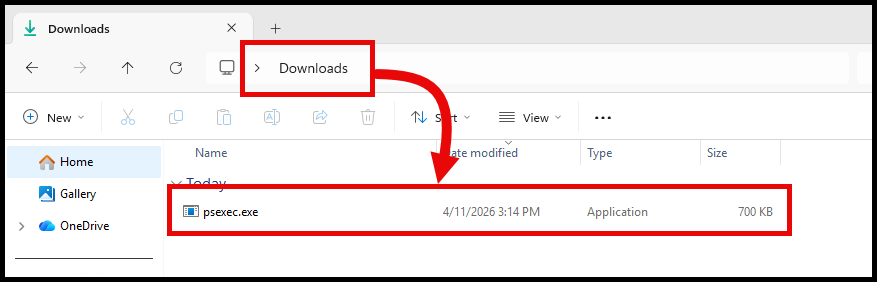
Step 1: Download PSExec #
You can download PSExec from the Microsoft Sysinternals website: PsExec - Windows Sysinternals
Or from Sysinternals Live: PsExec - Sysinternals Live
Step 2: Open a command prompt as Administrator #
Open a command prompt as Administrator and navigate to the location where you downloaded PSExec in the previous step.

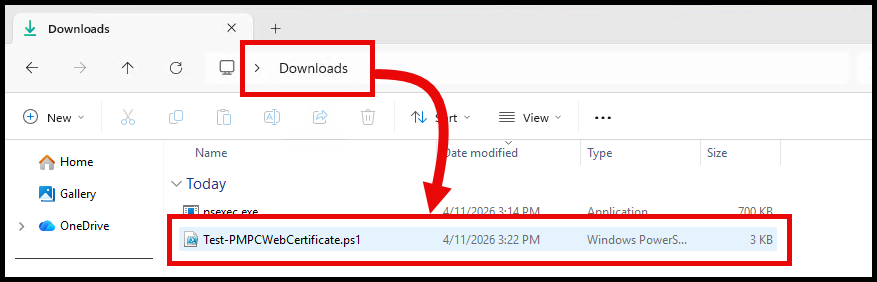
Step 3: Download the PowerShell script #
Download the script from : https://github.com/PatchMyPCTeam/CustomerTroubleshooting/blob/Release/PowerShell/Test-PMPCWebCertificate.ps1
Step 4: Run the PowerShell script using PSExec #
Use the following command to run the PowerShell script using PSExec.
<PathToPsExec>\psexec.exe -i -s powershell.exe -ExecutionPolicy Bypass -File "<PathToScript>\Test-PMPCWebCertificate.ps1"-iallows the process to run interactively-sruns the process under the SYSTEM account

Adjust the paths in the command as necessary to point to where you downloaded PSExec and the PowerShell script.
Remember that this will run powershell.exe using the SYSTEM account, so the path to the script needs to be fully defined.
Successful Result #
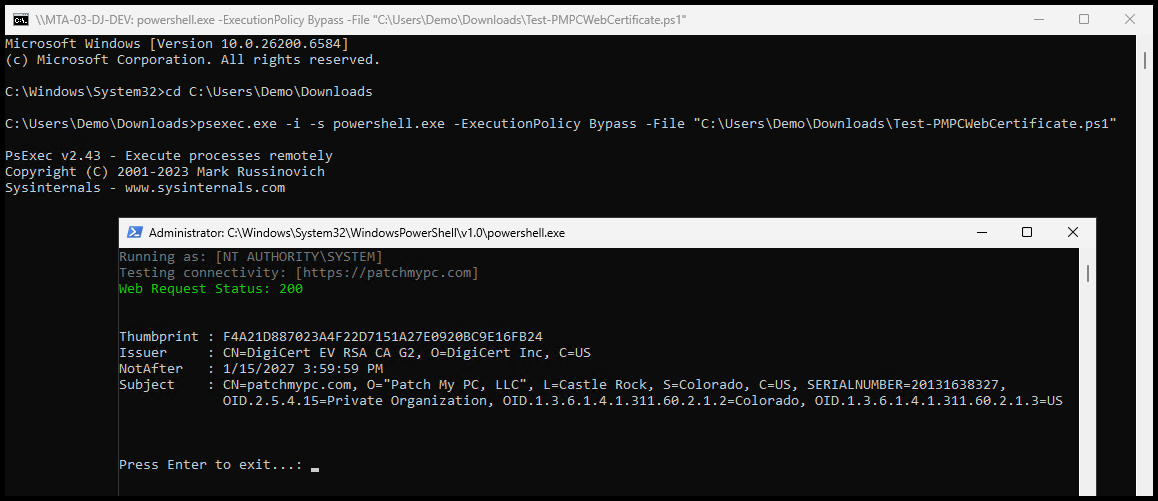
A successful result will show a green “Web Request Status: 200” success message.
A valid Patch My PC certificate should show the following information:
- Issuer:
- The Issuer will be DigiCert
- Subject:
- The Subject should contain the full Distinguished Name (DN) for Patch My PC. For example, the Subject might look like:
CN=patchmypc.com, O=Patch My PC, Inc., L=Castle Rock, S=Colorado, C=US...
- The Subject should contain the full Distinguished Name (DN) for Patch My PC. For example, the Subject might look like:
Failed Result #
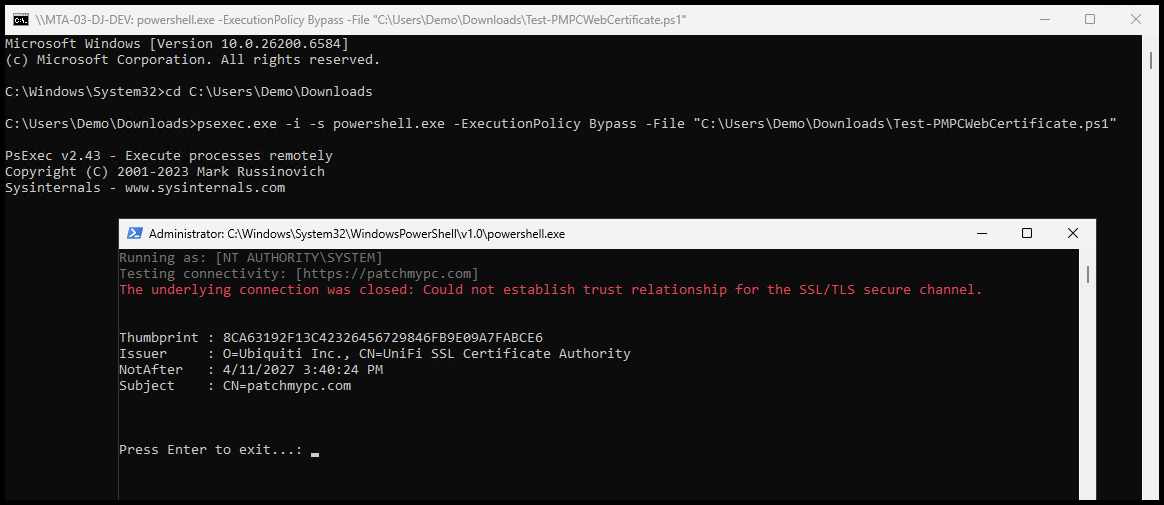
A failed result will show a red “The underlying connection was closed: Could not establish trust relationship for the SSL/TLS secure channel." error message.
In the example below, content filtering is being utilized that is performing TLS inspection. This has altered the certificate that is being returned and is causing the enrollment failure for the Advanced Insights for Intune Client.
- Issuer:
- Is an Ubiquiti Inc. certificate, which is not valid for Patch My PC
- Subject:
- Although the Subject does have
CN=patchmypc.com, it does not contain the full Distinguished Name (DN) for Patch My PC that we would expect.
- Although the Subject does have
Summary #
If you are seeing the ‘Failed to establish TLS/SSL connection’ error, work with your network or security team to confirm whether TLS inspection is in place and add an exception for *.patchmypc.com.
Keep in mind:
- The Patch My PC Client runs under the SYSTEM context
- Verify that Bypass Policies are not just set for the USER context
And also check the Patch My PC Client Prerequisites page for additional information on what is required for the Advanced Insights for Intune Client to successfully enroll and function properly.