

Patch My PC has options to enable ‘Installation Logging’ for product that support generating their own ‘Log File’ during installation.
The Patch My PC ‘Adobe Acrobat’ product does NOT have the ‘Installation Logging’ option avaialble. But that doesn’t mean that it can be added manually as the installation can support it through the underlying MSI installer.
Check if a Product supports ‘Installation Logging’ #
You can validate if the Patch My PC product supports the ‘Installation Logging’ feature in either the ‘Publisher’ or ‘Cloud’:
Cloud #
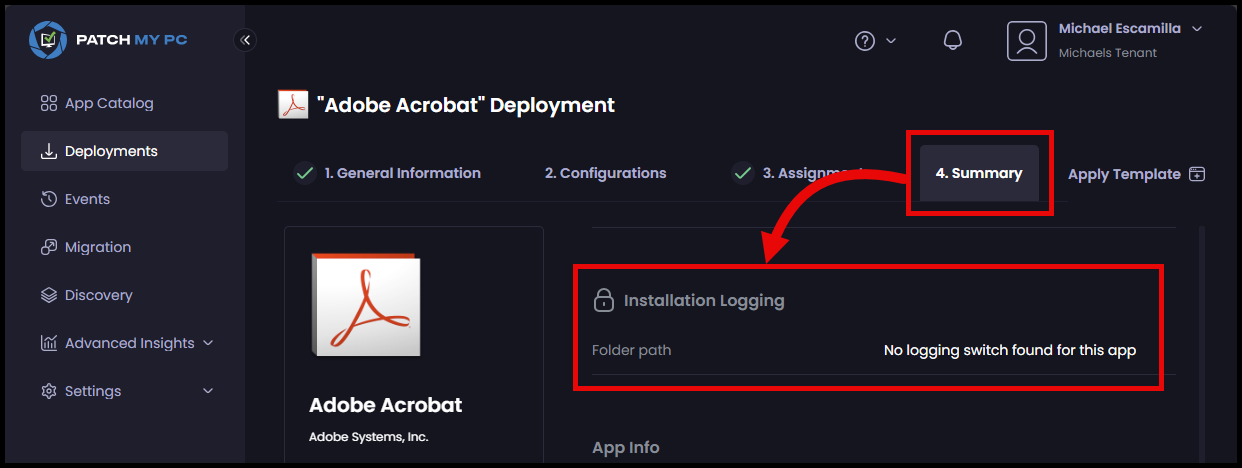
When in the Cloud Portal, on the ‘Summary’ tab of the deployment, check the ‘Installation Logging’ section. If it says No logging switch found for this app, then the product does not support the ‘Installation Logging’ feature.
Publisher #
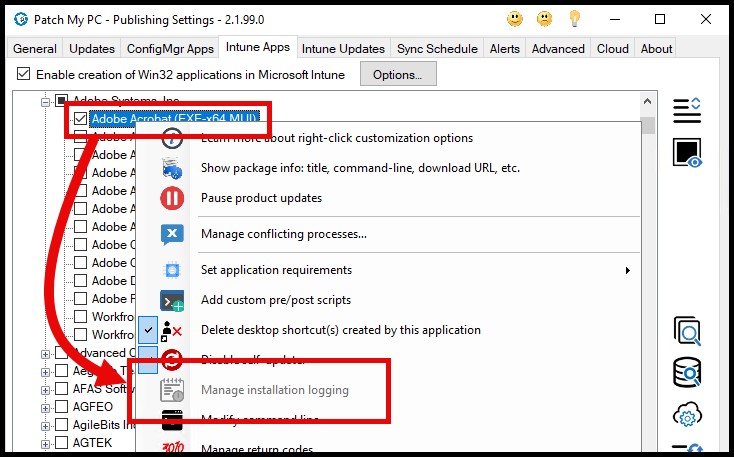
When in the Publisher, Right-Click on the product, and if the ‘Manage Installation Logging’ option is grayed out like below, then the product does not support the ‘Installation Logging’ feature.
Add ‘Installation Logging’ to ‘Adobe Acrobat’ #
The Adobe Acrobat installation uses the ‘setup.exe’ file, but you can pass MSI parameters to the underlying MSI installer by using the ‘/msi’ switch.
See the Adobe Acrobat Documentation here: MSI and Cmd-line examples
At the bottom of the ‘MSI switches’ section, you see the /msi switch that can be used to pass parameters to the underlying MSI installer.

The syntax of the additional command line parameter will be:
/msi /l*v "<FolderPath>\<LogFileName>.log"Make sure the folder path you specify exists on the device before the installation starts, otherwise the installation may fail.
You can either use a folder path that will always exist, or use a Pre-Script to validate/create the folder path.
Cloud #
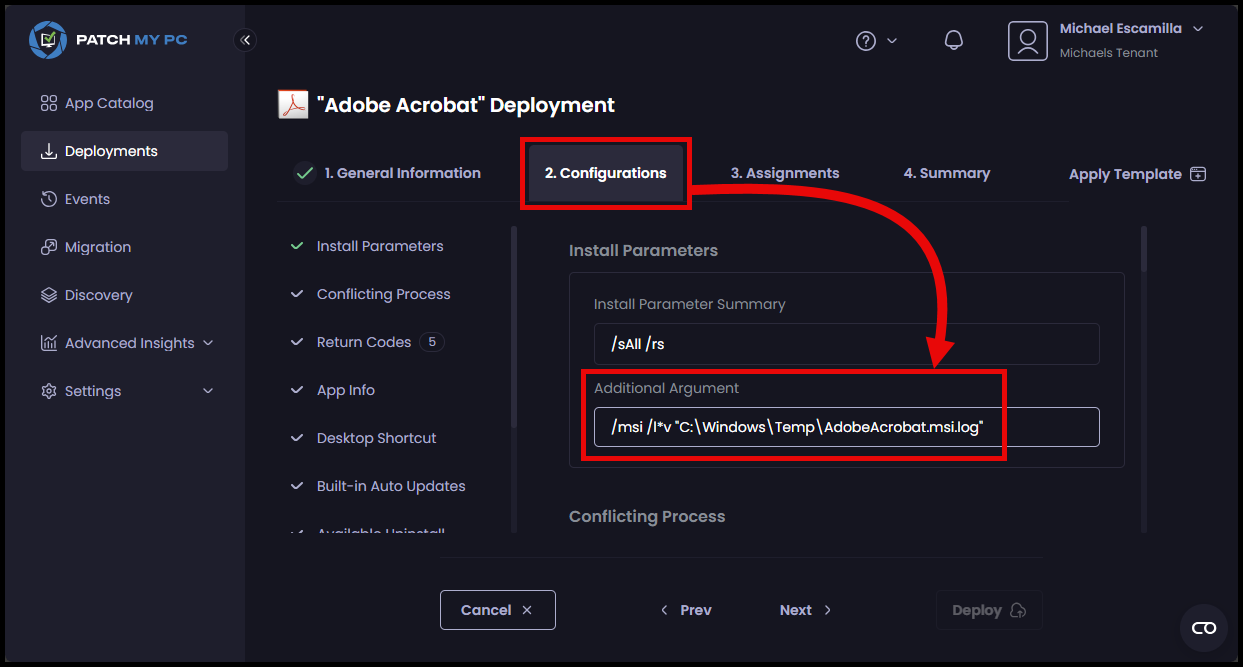
In the Cloud Poral, this will be added in the ‘Additional Argument’ section under ‘Install Parameters’ on the ‘Configuration’ tab of the deployment.
/msi /l*v "C:\Windows\Temp\AdobeAcrobat.msi.log"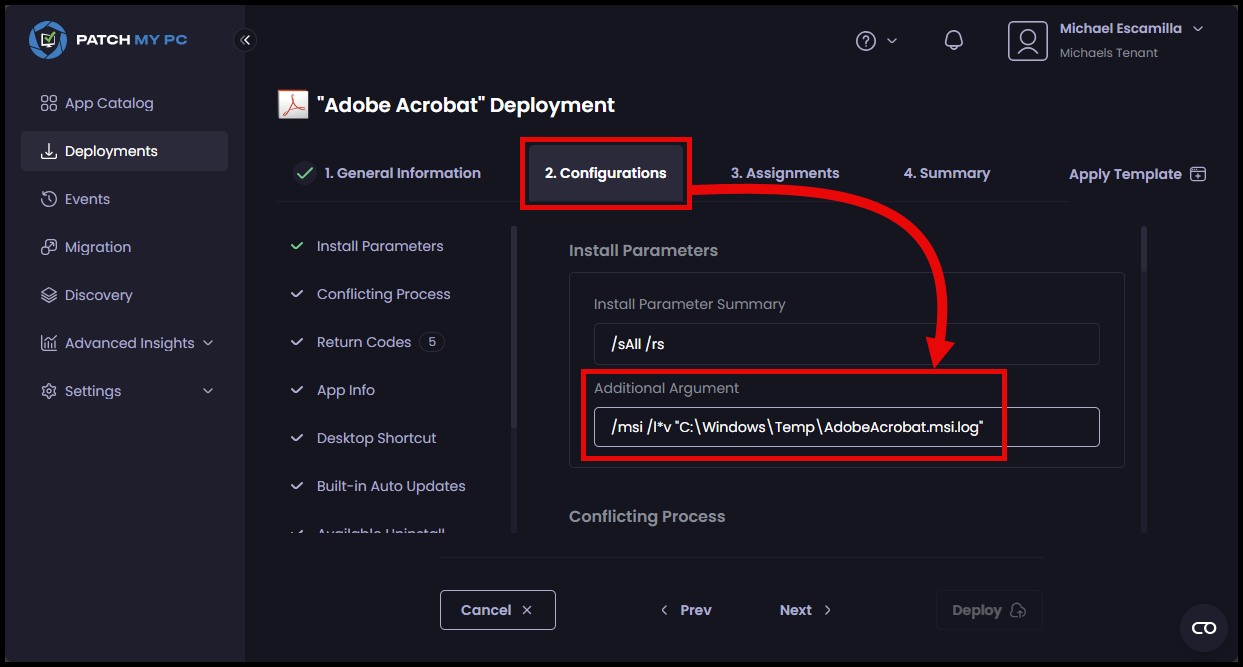
Publisher #
In the Publisher, Right-Click on the product, and select ‘Modify Command Line’
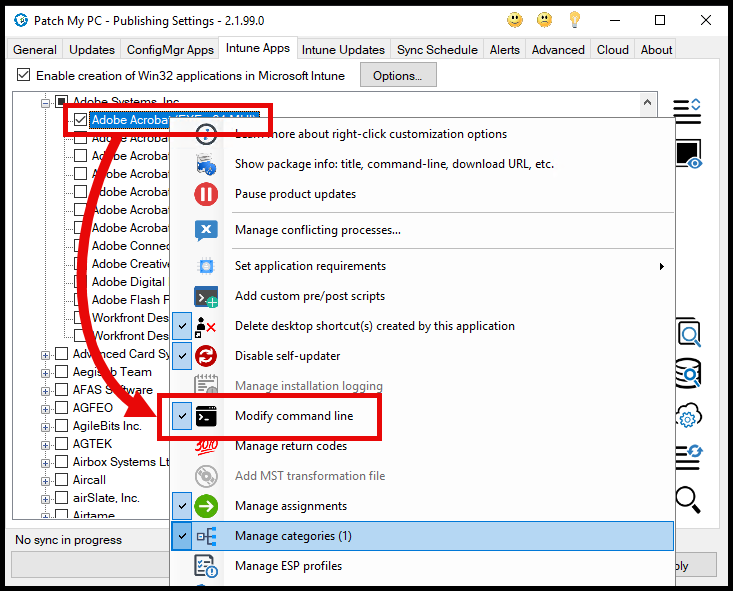
Then add the additional command line parameter in the ‘Additional Argument’ section.
/msi /l*v "C:\Windows\Temp\AdobeAcrobat.msi.log"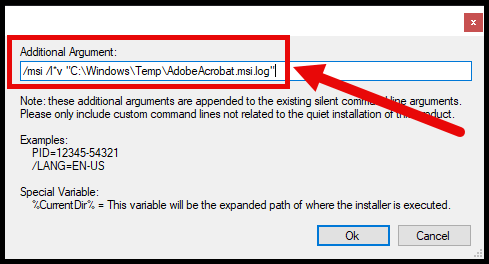
Trying it out #
When the installation runs, the ‘PatchMyPC-ScriptRunner.log’ will show the additional arguments and how it builds the full command line for the installation.
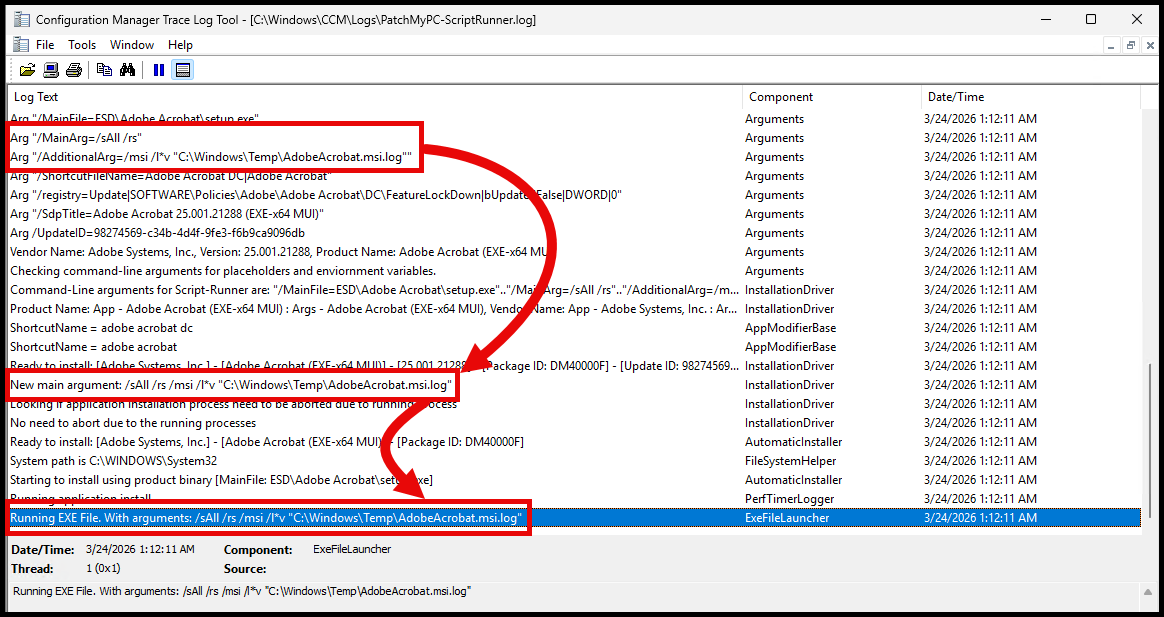
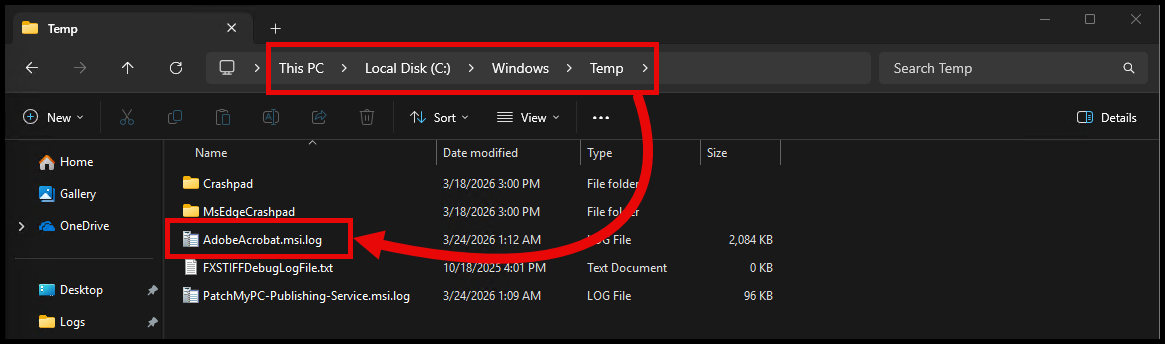
And you should see the log file generated in the specified location.
Notes #
- This will not generate a log file for the uninstallation. Patch My PC currently only supports passing additional arguments during installation, not uninstallation.