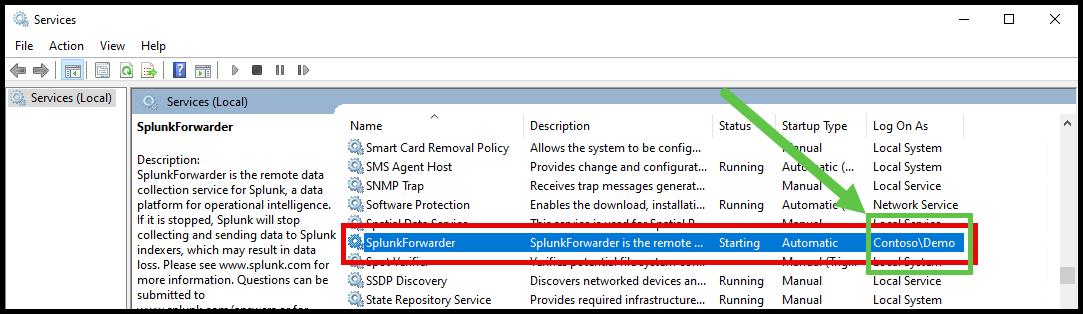

This article will cover how the Splunk Universal Forwarder product in the Patch My PC Catalog is configured by default, and how you can modify the install commands to change what account is used to run the service.
Backstory #
At one point, the Splunk Universal Forwarder installer would error during an update if the parameter USE_LOCAL_SYSTEM=1 was set and a service account was configured to run the service.
So whether you are receving an error during an update, or you just want to change the account that the service is running as, this article will show you how to do that by overriding the default commandline options set by Patch My PC.
Patch My PC Product Configuration #
At one point it was decided to set the PMPC commandline to use USE_LOCAL_SYSTEM=1, which means that when the Splunk Universal Forwarder is installed, it will be configured to run as Local System.
Command-line Options #
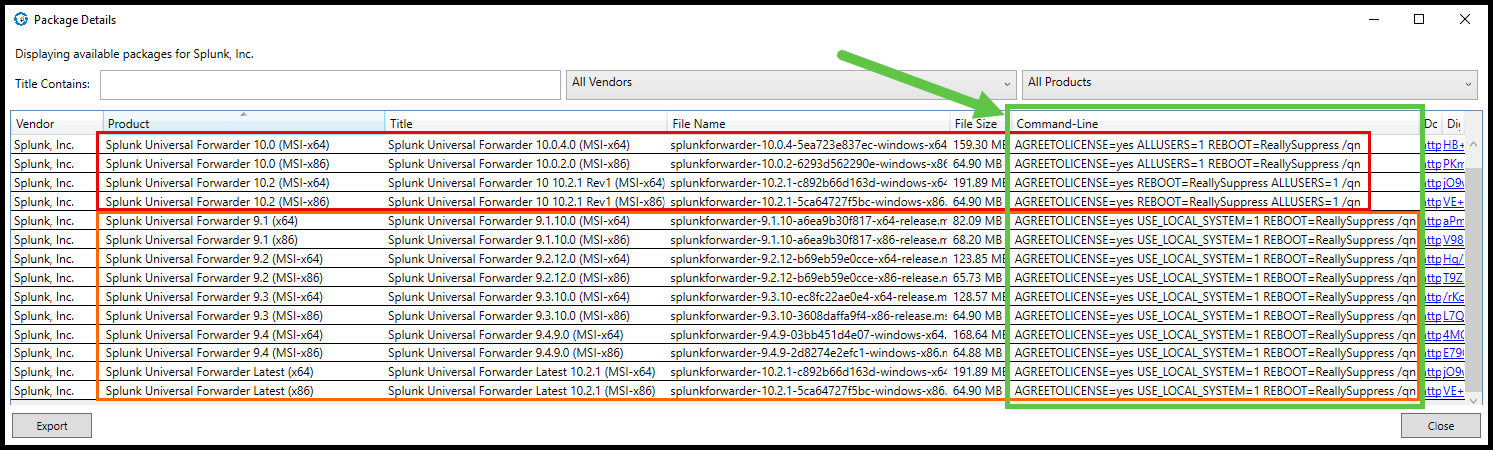
The table below shows the current command-line options, and how going forward with the newer v10.x products, USE_LOCAL_SYSTEM=0 is no longer defined.
v9.x and ‘Latest’ Products #
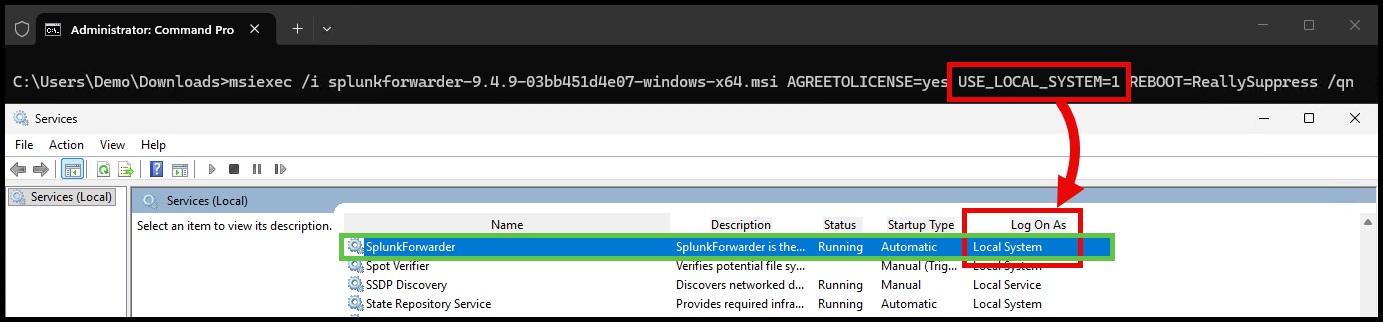
These products are set to use USE_LOCAL_SYSTEM=1 in the commandline and have been for a while now.
USE_LOCAL_SYSTEM=1- This will configure the service to run as Local System
v10.x Products #
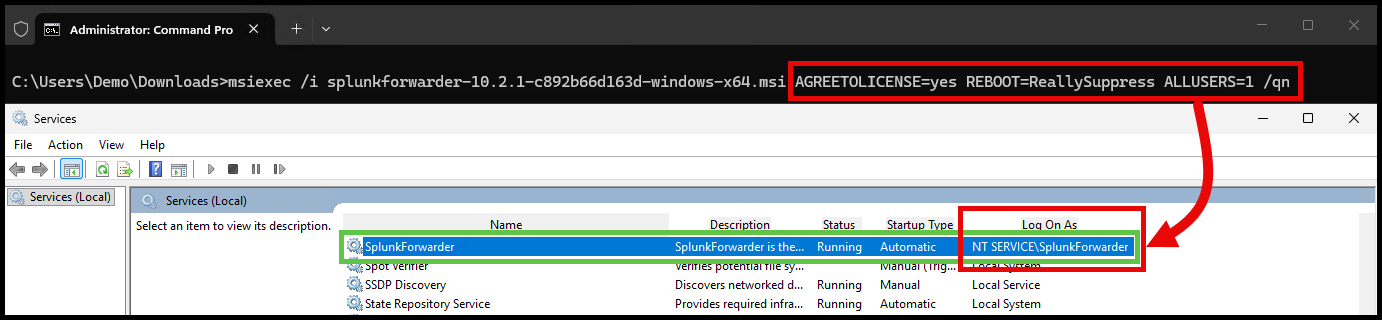
The v10.x products are set to use USE_LOCAL_SYSTEM=0 in the commandline, as this is the default value within the MSI’s property table.
USE_LOCAL_SYSTEM=0- This will configure the service to run as a user account, and will prompt for credentials during installation
MSIs and Duplicate parameters #
Something that I learned from my time at Patch My PC is that if you pass multiple of the same parameter to an MSI, the last listed parameter’s value will be used, thanks @Dan Gough.
So for Splunk Universal Forwarder, we can use that to override the default values set by Patch My PC.
Overriding the Default Command-line Options #
If you need to change the installation behavior from what Patch My PC has set by default, you can do this by using the Modify Command line option.
Cloud #
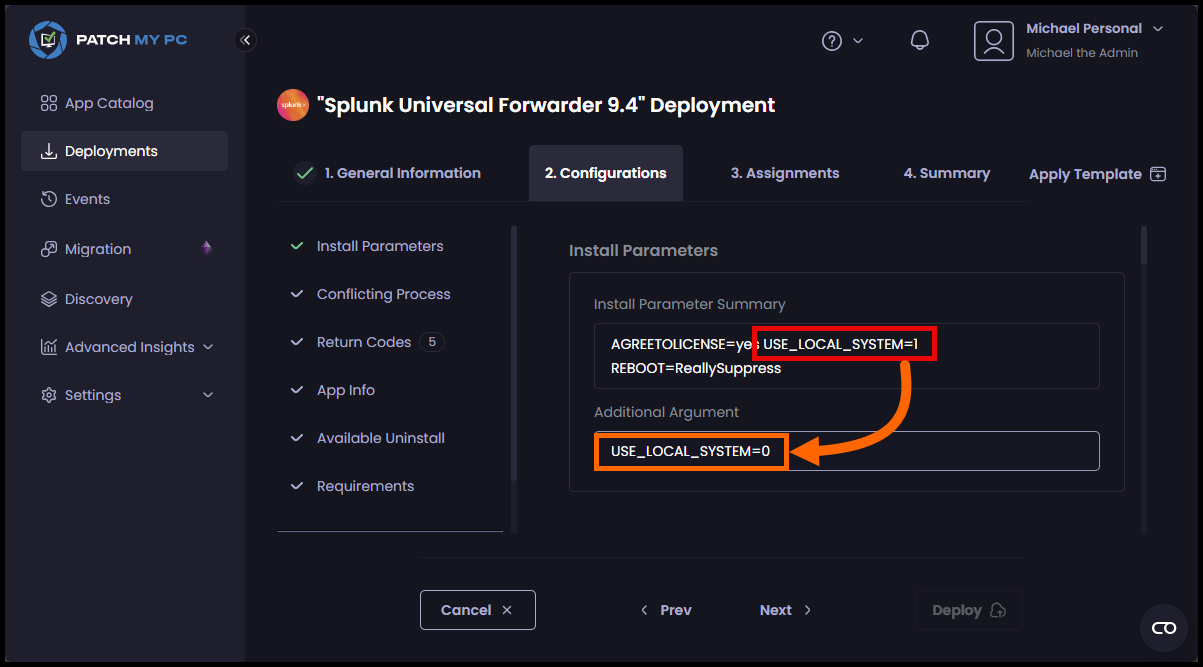
In the Cloud Portal, use the Additional Argument field to add the commandline options you want to use.
The below example shows how to set the USE_LOCAL_SYSTEM=0 parameter which will override the default USE_LOCAL_SYSTEM=1 parameter that is set by Patch My PC.
Publisher #
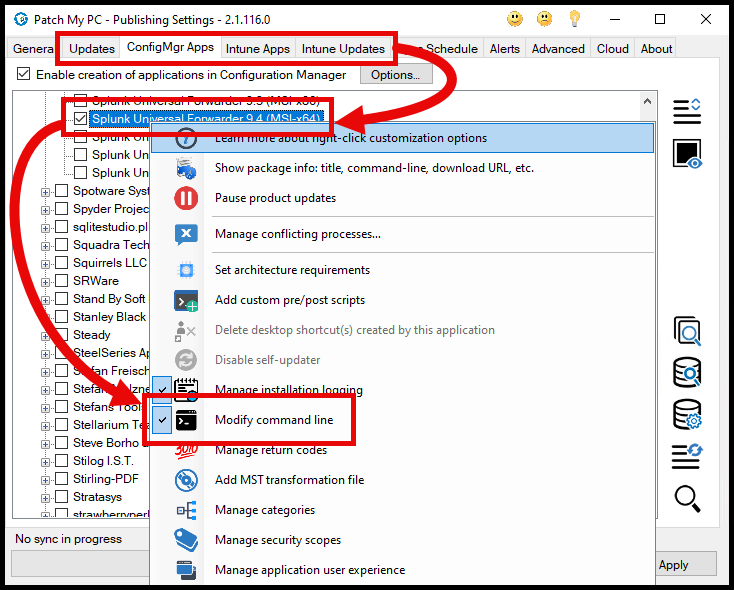
In the Publisher, Right-click on the product and select Modify Command line:
Then add the commandline options you want to use in the Your Additional Arguments field.
USE_LOCAL_SYSTEM=0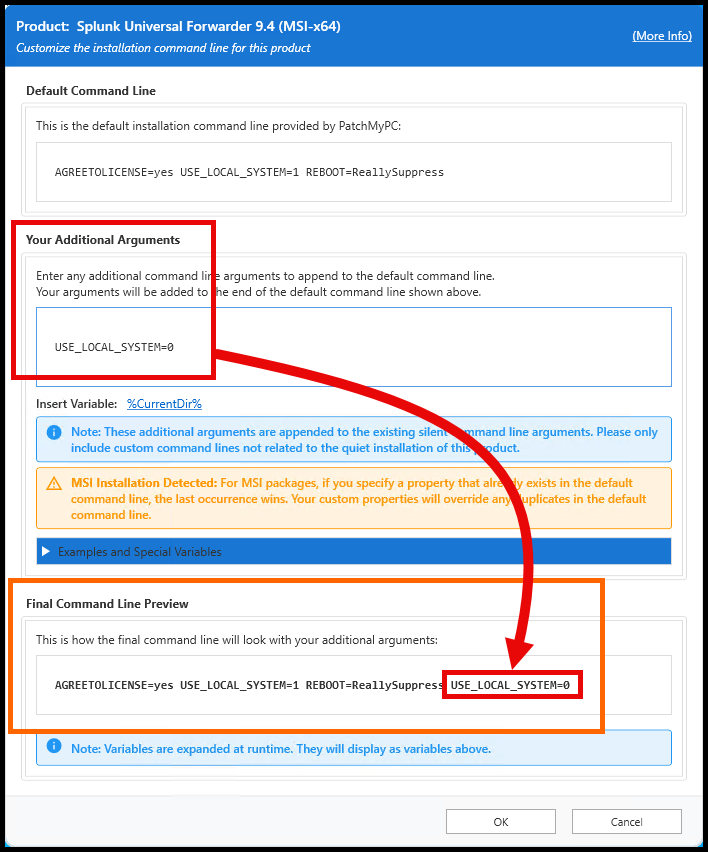
Trying it out #
Using either the Cloud or Publisher method, you will see in the installation log that both parameters are being passed to the MSI:
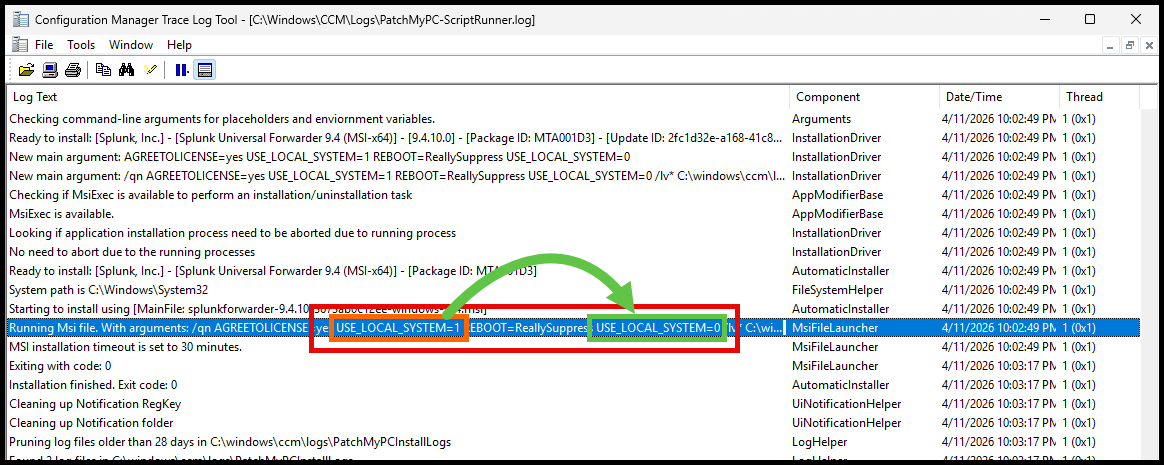
But since the USE_LOCAL_SYSTEM=0 parameter is listed after the USE_LOCAL_SYSTEM=1 parameter, the MSI log shows the 0 value being used.
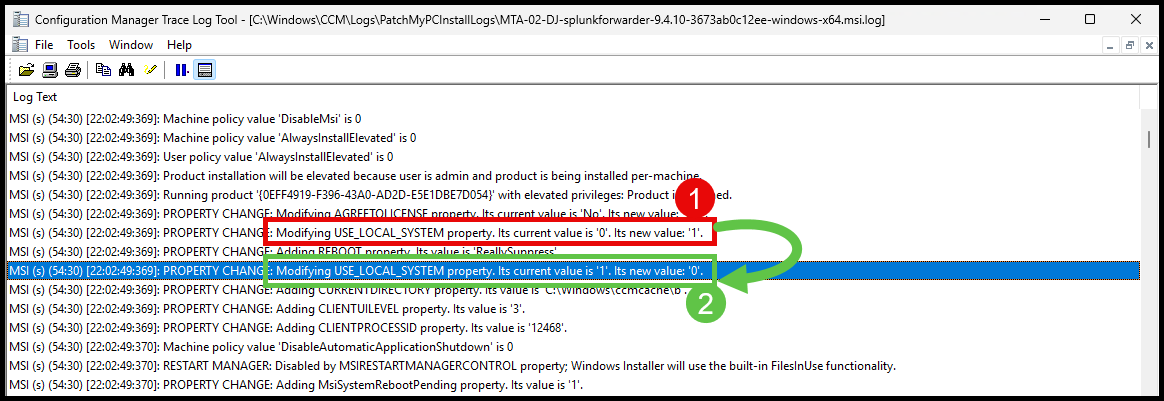
- The MSI’s default value is
0, so first it switches it to1because of the PMPC commandline - Then it switches it back to
0because of the additional commandline options we added
Extra Credit - Specify a Service Account #
Splunk also allows you to set the service account by using the LOGON_USERNAME and LOGON_PASSWORD parameters.
Cloud #
In the Cloud Portal, you can add these parameters in the Additional Argument field:
LOGON_USERNAME="Contoso\Demo" LOGON_PASSWORD="SecurePassword"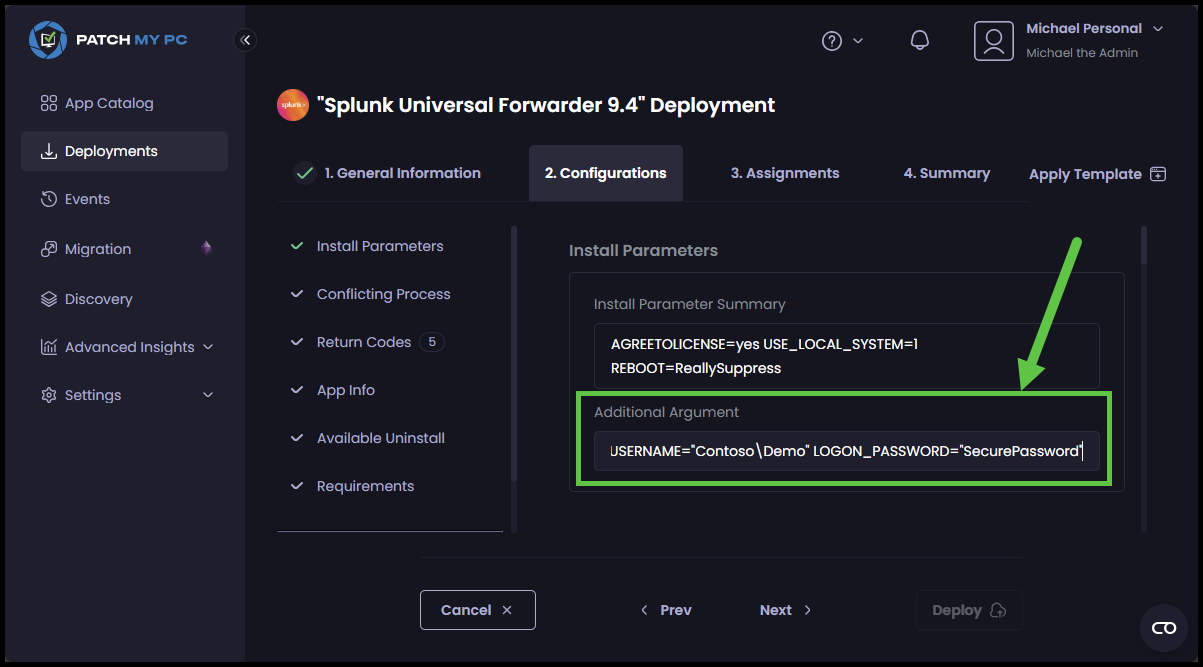
Publisher #
In the Publisher, you can add these parameters in the Your Additional Arguments field:
LOGON_USERNAME="Contoso\Demo" LOGON_PASSWORD="SecurePassword"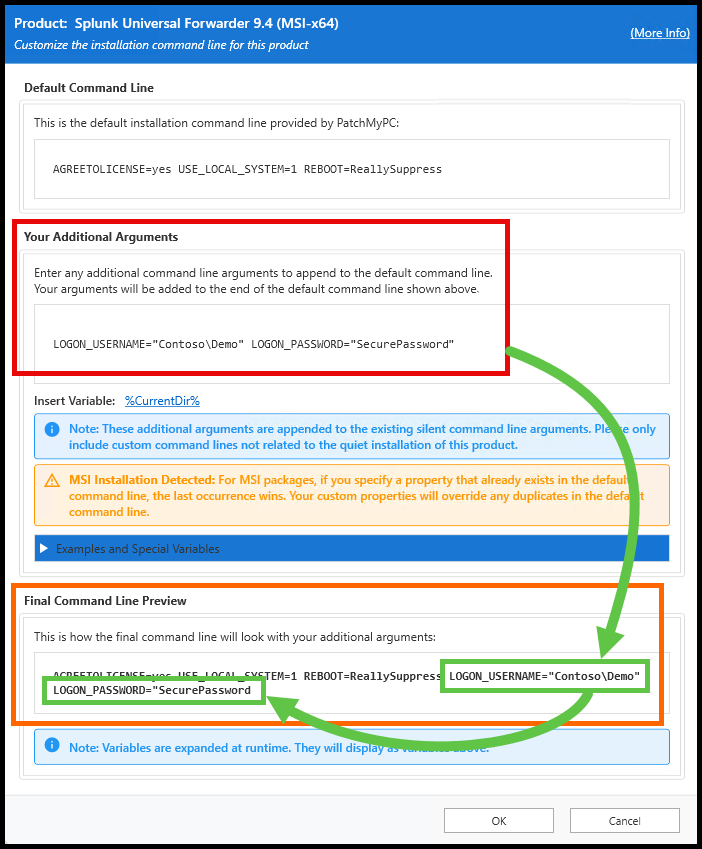
Trying it out #
Using either the Cloud or Publisher method, you will see in the installation log that the LOGON_USERNAME and LOGON_PASSWORD parameters are being passed to the MSI:
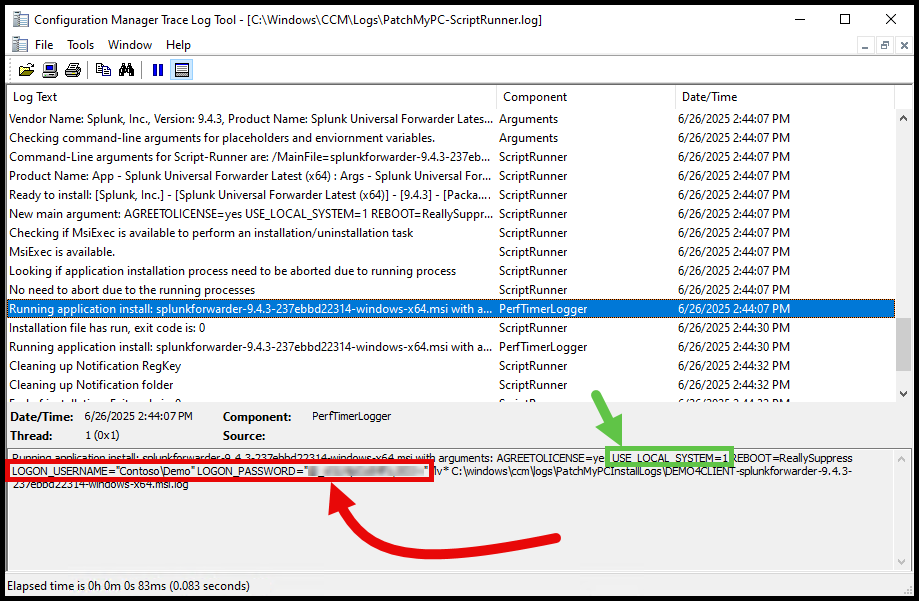
And when checking Services.msc after installation, you will see that the service is now running as the specified user account: