
ConfigMgr: Adding HP Windows PE drivers to your Boot Image
  1. Posts/

ConfigMgr: Adding HP Windows PE drivers to your Boot Image

·415 words
Michael Escamilla
Author
Michael Escamilla
Table of Contents

If you manage HP devices with Configuration Manager, then you will most definitely need some drivers in your Boot Image for those devices. HP like some other manufactures, makes a package that should contain just about all the necessary drivers you need for all currently supported models.

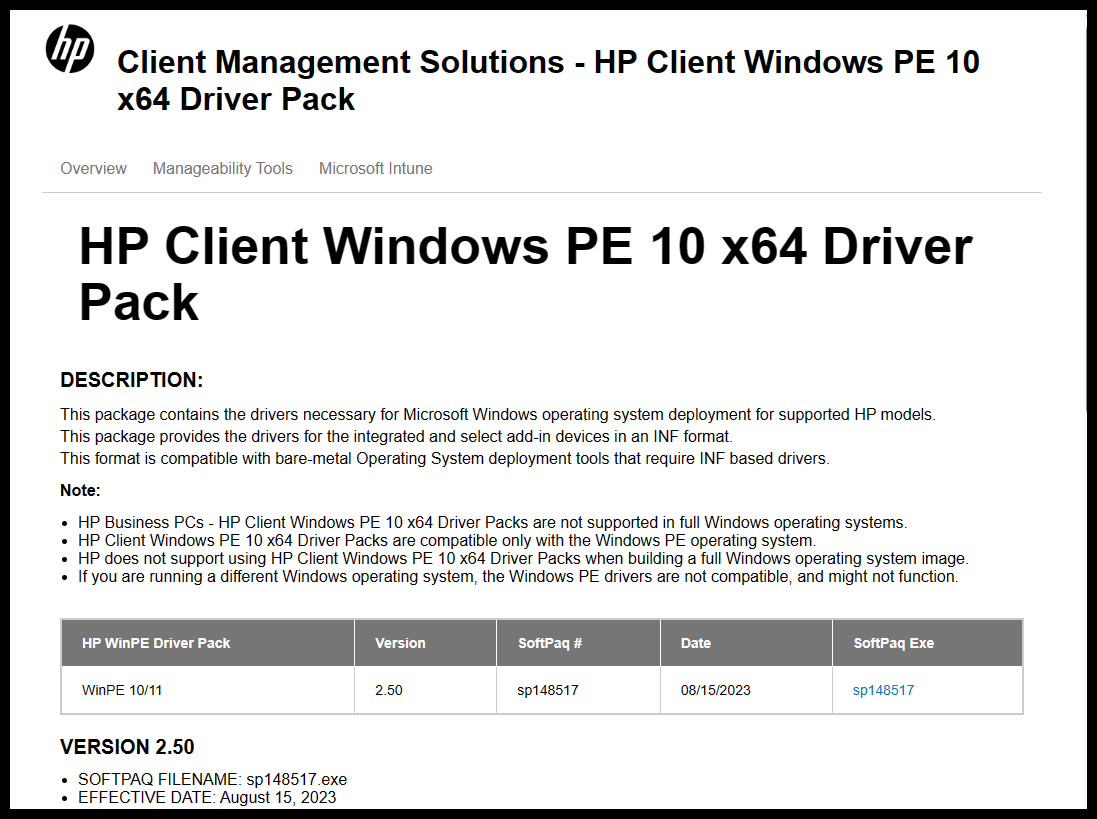
Download the current softpaq
#

This package works with Windows 10 and Windows 11 according to the page. As of this writing, the current package is version 2.50 SoftPaq# sp148517.

Note

There is now an updated package that was released after I starting writing this post: version 3.20 SoftPaq# sp165773

Download the Package from: HP Client WinPE 10 Driver Pack | HP Client Management Solutions

Run the installer to extract the package
#

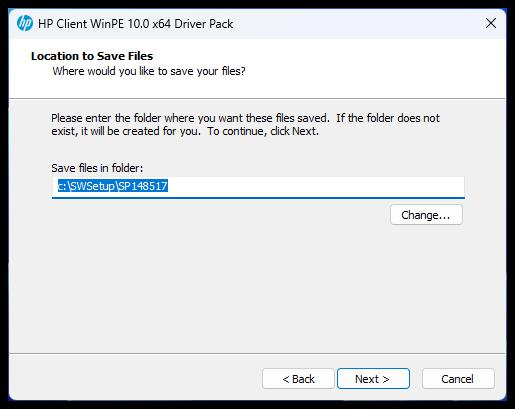
Running the installer will extract the files to the default location of:

c:\SWSetup\SP148517
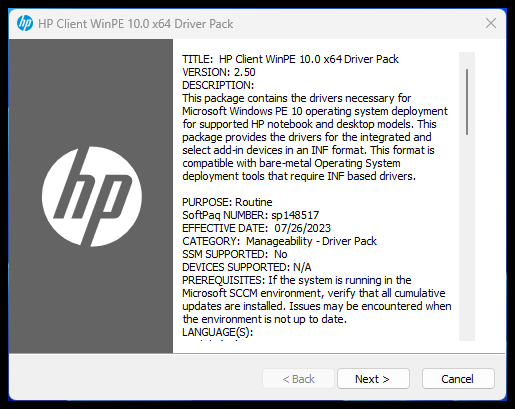
Select ‘Next’
Select ‘Next’
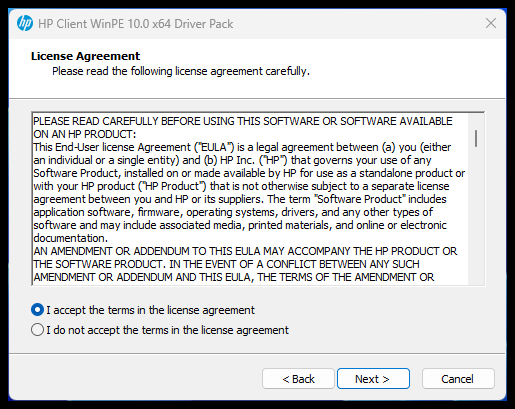
Accept the Terms
Accept the Terms
Note the Save Location
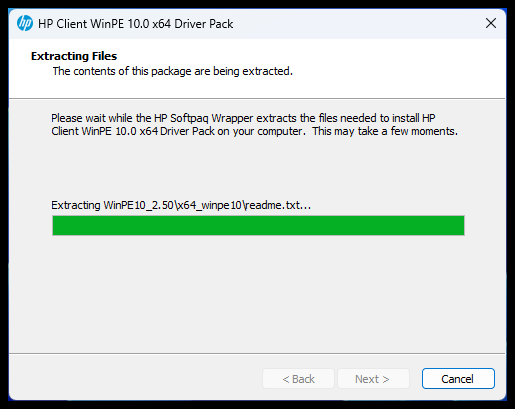
Extraction will occur
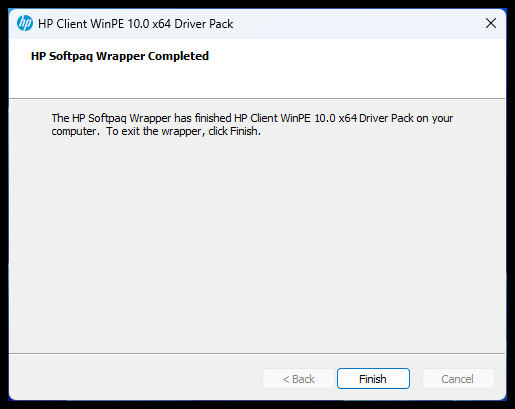
Select ‘Finish’
Select ‘Finish’

Copy files to your ConfigMgr Source Share
#

Next step is to copy the files to your ConfigMgr Source Share.

Warning

NEVER DELETE THESE FILES! After importing and adding these drivers to your Boot Image, you will need to reference the source files every time you Update your Boot Image.
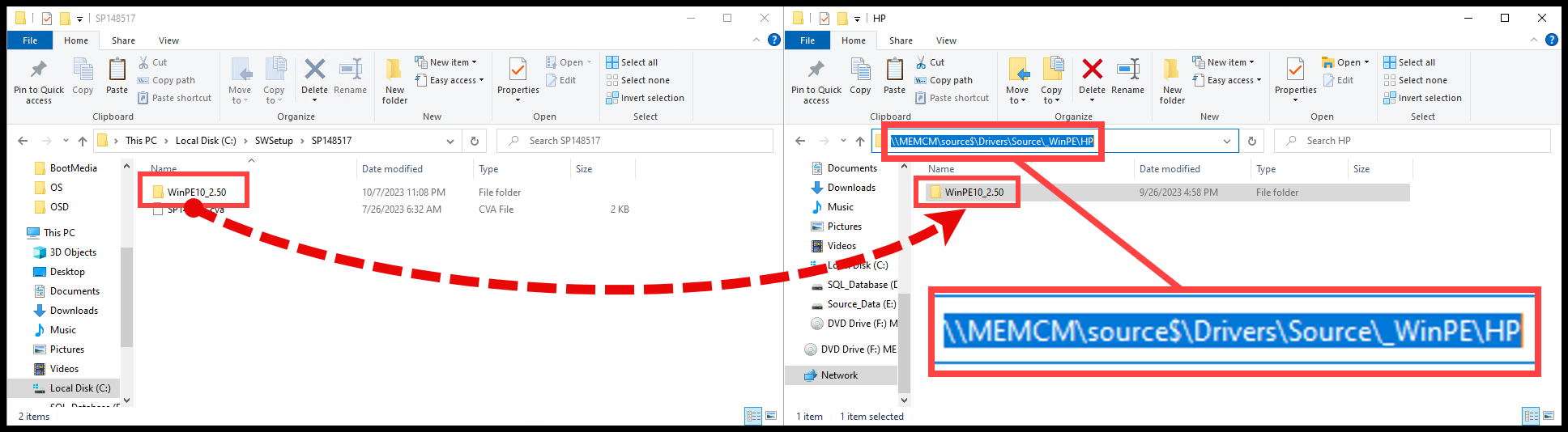
Copy to Source

This where I copied the files too, your Path might be different.

Import drivers
#

Now lets import the drivers to ConfigrMgr. Start by opening the Configuration Manager Console

  1. Select ‘Software Library
    • Under Operating Systems, select ‘Drivers’
    • On the Ribbon, select ‘Import Drivers’
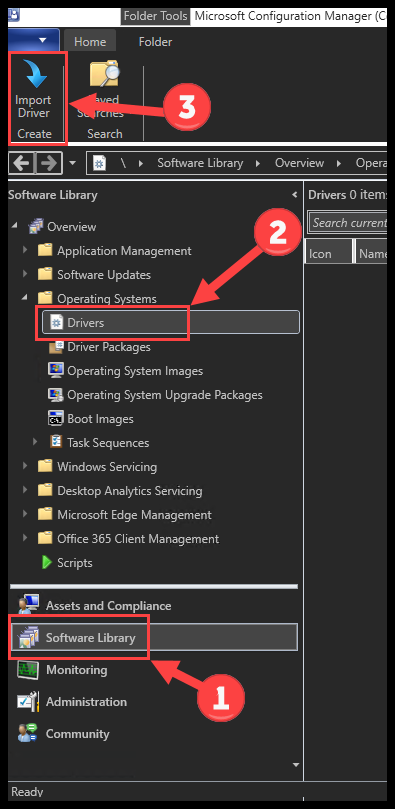
Navigate to Import Drivers
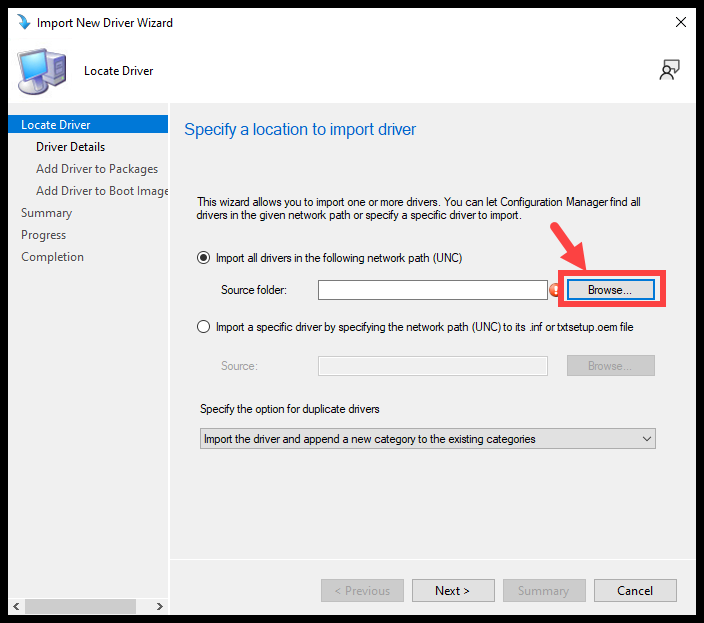
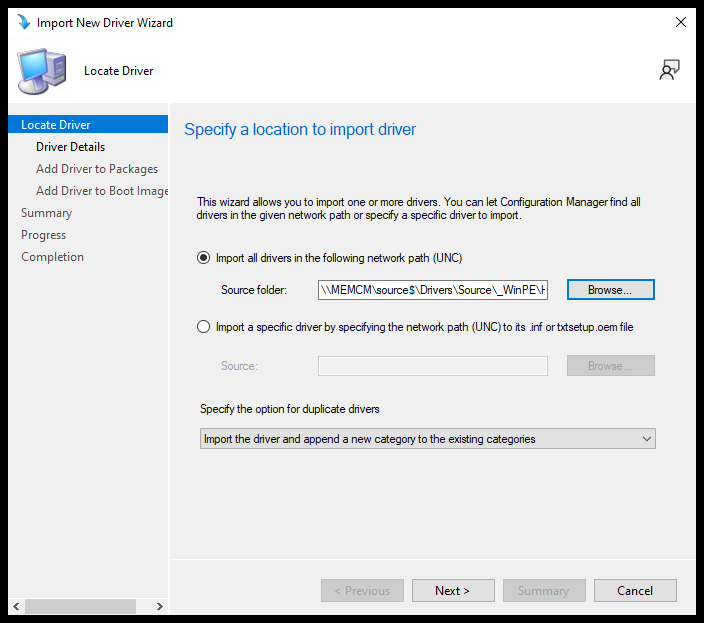
2. Select ‘Browse…’

Import Drivers Step 2
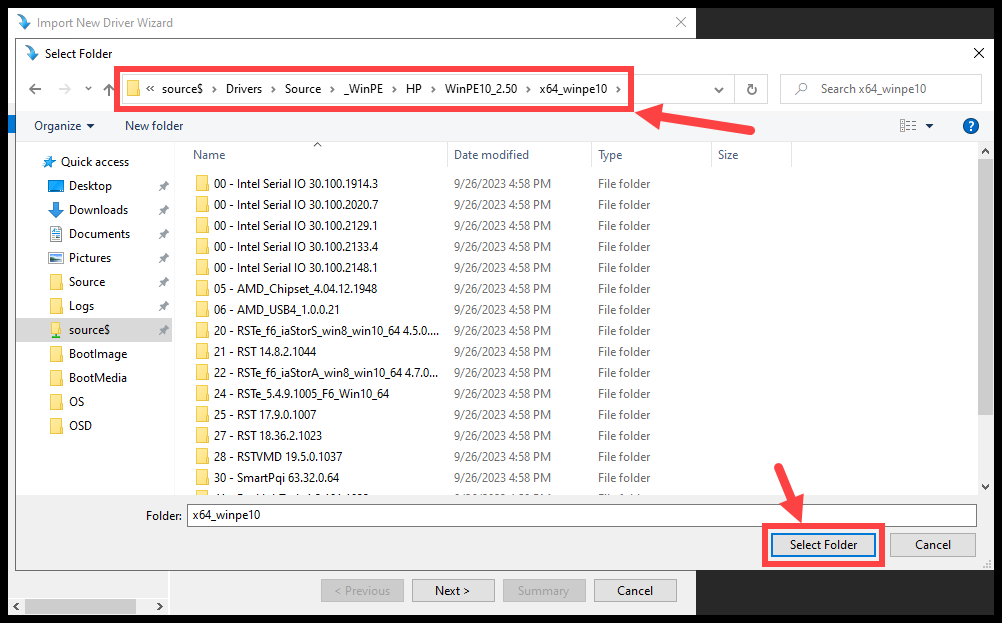
3. Navigate to the UNC path driver folder and select ‘Select Folder’

Import Drivers Step 3
4. Select ‘Next’

Import Drivers Step 4
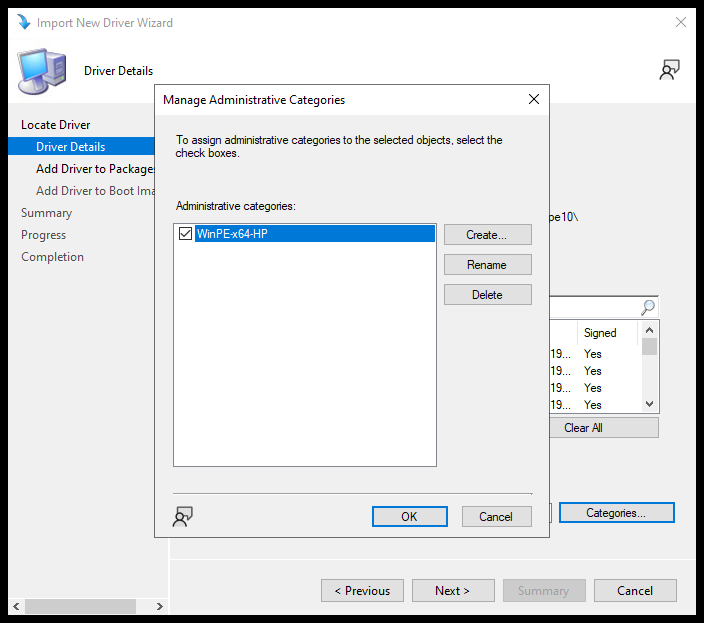
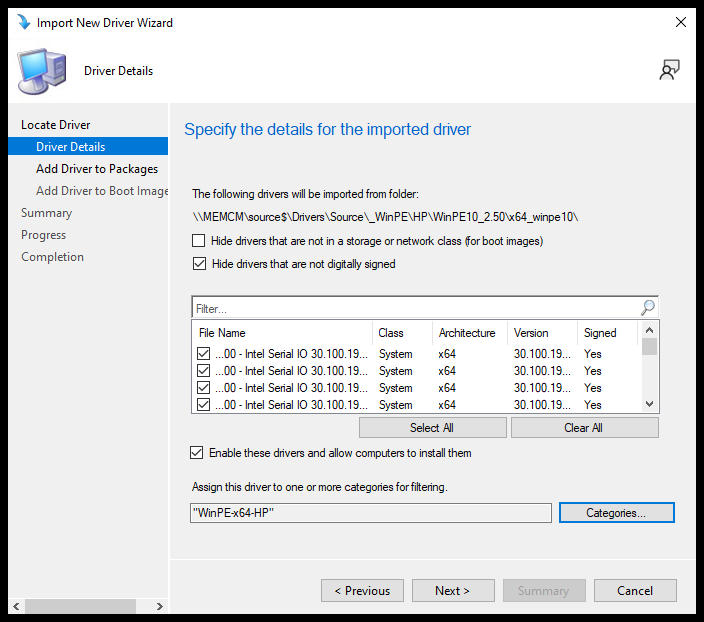
5. Optional: Create an Administrative Category for organization - I’ve created the categor ‘WinPE-x64-HP’

Import Drivers Step 5
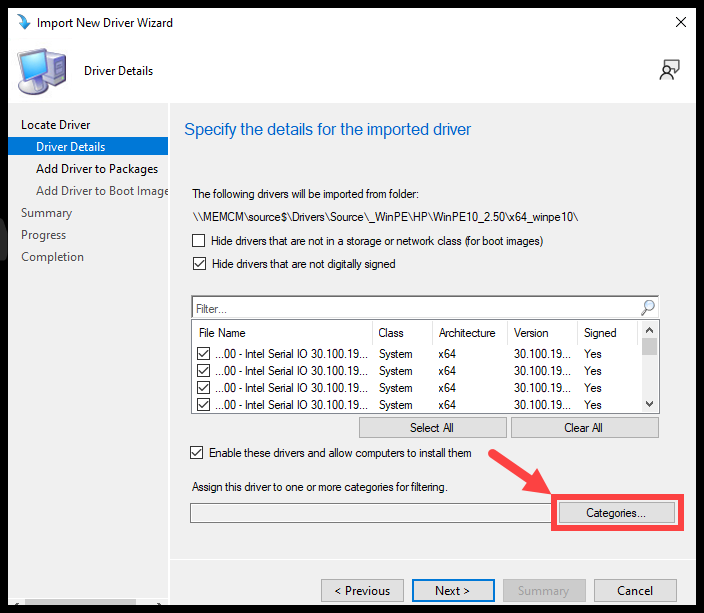
Select ‘Categories…’
Import Drivers Step 5.a
Create and select category
Import Drivers Step 5.b
Select ‘Next’
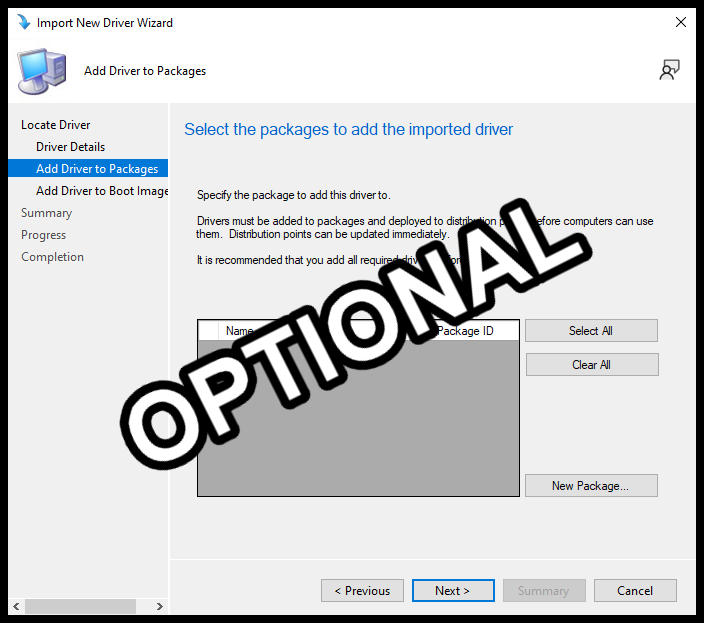
6. Optional: Create a driver package for all the drivers - Just adding the drivers to Boot Image does not require this step. The drivers will be accessed directly from the UNC path. - You can create a driver package if you wish to install any of these drivers during OSD to the device.

Import Drivers Step 6
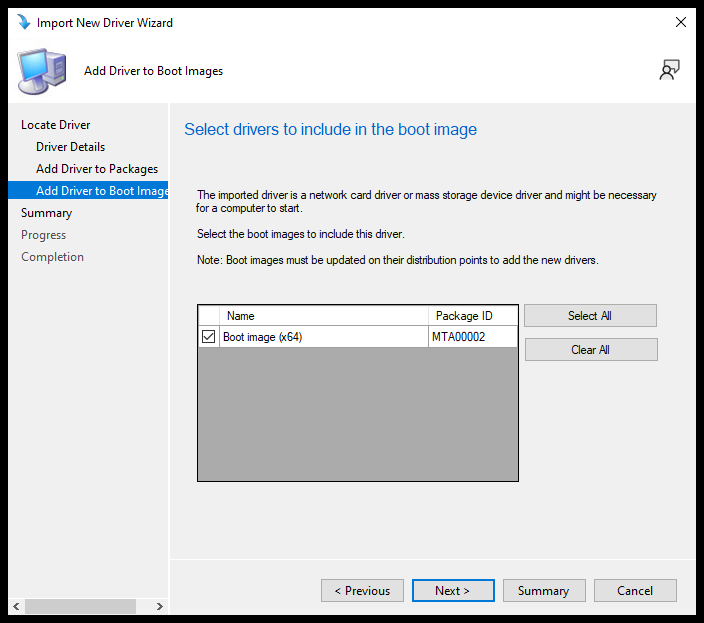
7. Check the Boot image that you want to inject the drivers to - I’m selecting my ‘Boot image (x64)’
Select Boot Image
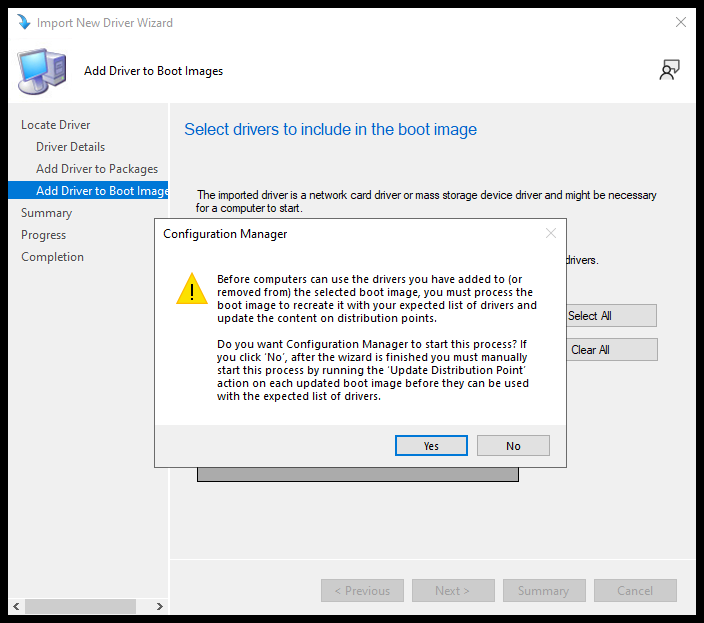
8. Select ‘Yes’ to have the boot image updated with the drivers and distributed to your DPs immediately.
Select Yes for DPs
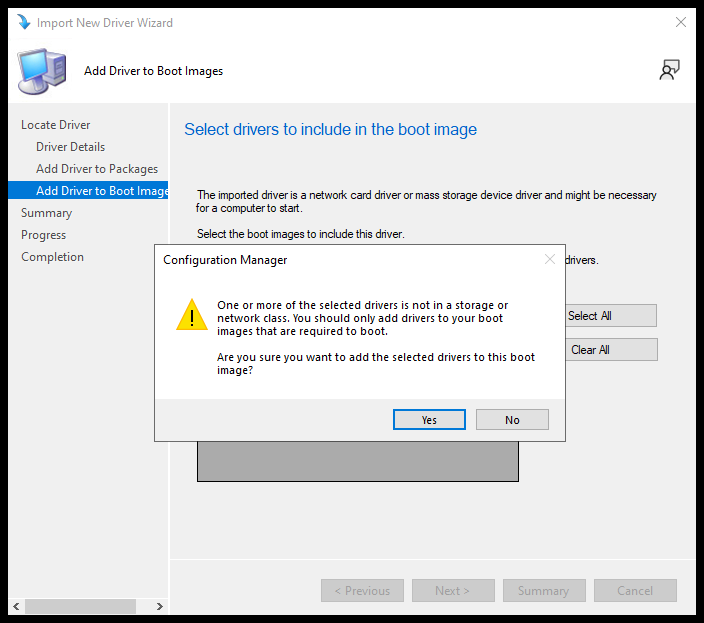
9. Select ‘Yes’ again at the storage and network class warning
Select Yes for Storage and Network Class Warning
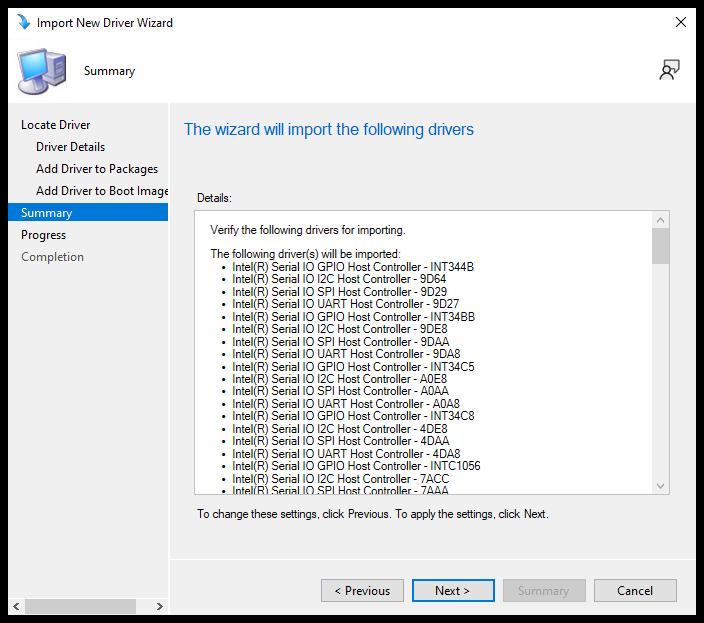
10. Select ‘Next’ on the Summary page
Select Next on Summary
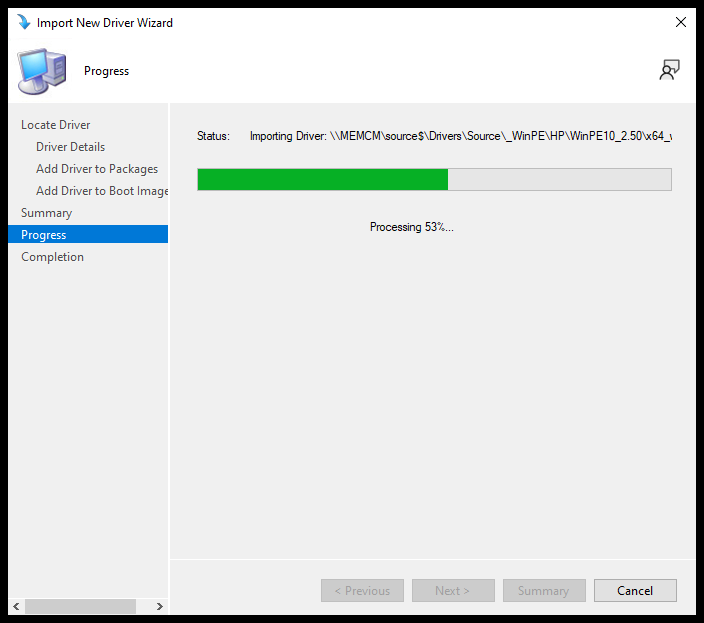
Processing
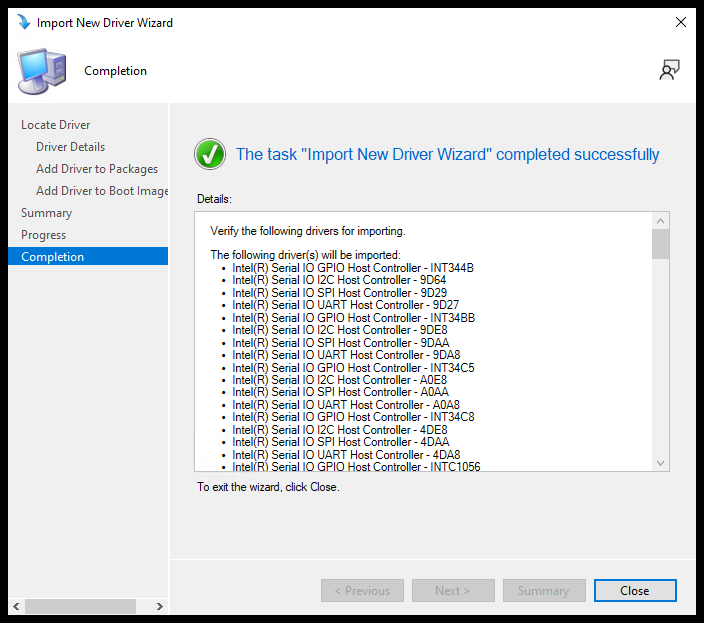
Completed

Success!
#

After the boot image has been distributed to your DP’s, you should now have the necessary drivers for your HP Devices to boot.