


I’ve recently been working on my ZoomIt skills and thought it would be a good idea to have it installed on my Lab machines.
Obviously, I don’t want to manually go to each machine individually and install it. That could take over 10 minutes of my time!
So lets spend way too much time writing a PowerShell script that can do it for us, and deploy it using Configuration Manager.
Additional Information #
ZoomIt #
If you are unfamiliar with ZoomIt, it a lightweight tool used for Presentations and Demos. It allows you to zoom in on your screen, draw and display shapes, and even record. This can better engage your audience with your content
Sysinternals Registry Key #
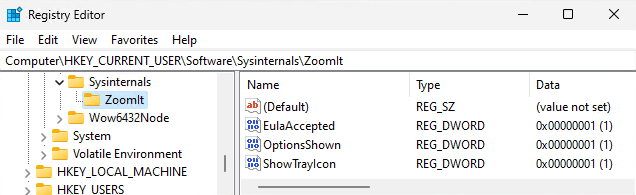
The settings for ZoomIt are stored in the Users registry hive. There is a main ‘Sysinternals’ key with each tool having its own subkey.
Below are the 3 currently definable settings using the script. After ZoomIt is launched for the first time, more will populate in the key.
EulaAccepted #
This REG_DWORD value controls if the EULA for ZoomIt has been displayed and Accepted. Use the below switch parameter to set this values data to ‘1’.
Install-ZoomIt.ps1 -AcceptEULA- 0 = Not Accepted
- 1 = Accepted
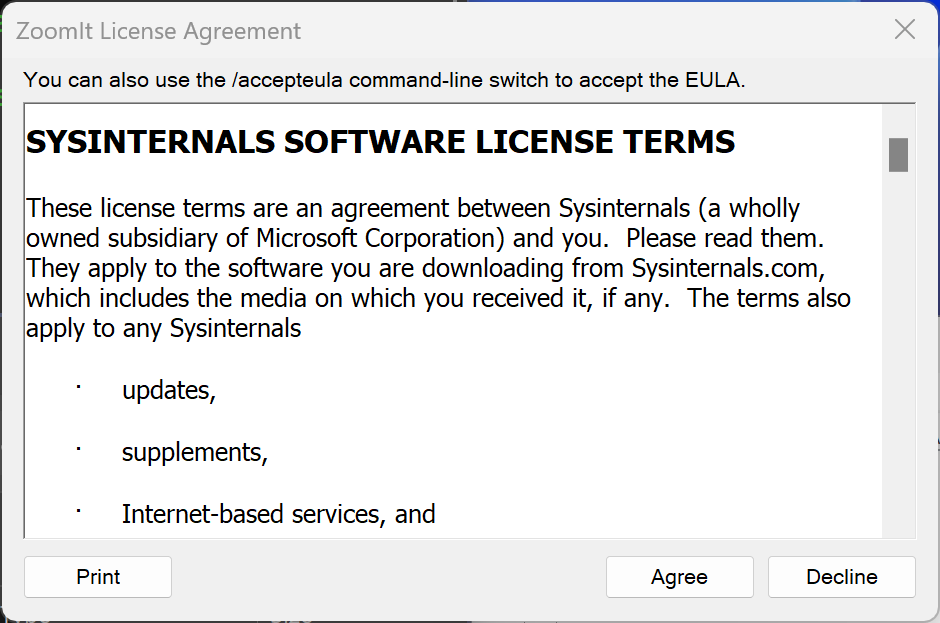
Defining this value to ‘1’ before launching ZoomIt will prevent the below prompt from appearing.
OptionsShown #
This REG_DWORD value controls if the Options Window displays on the First Run of ZoomIt. Use the below parameter to set this values data to ‘1’. Not defining this parameter will set it to ‘0’
Install-ZoomIt.ps1 -ShowOptions- 0 = Options window will open on First Run
- 1 = Options window has already been shown
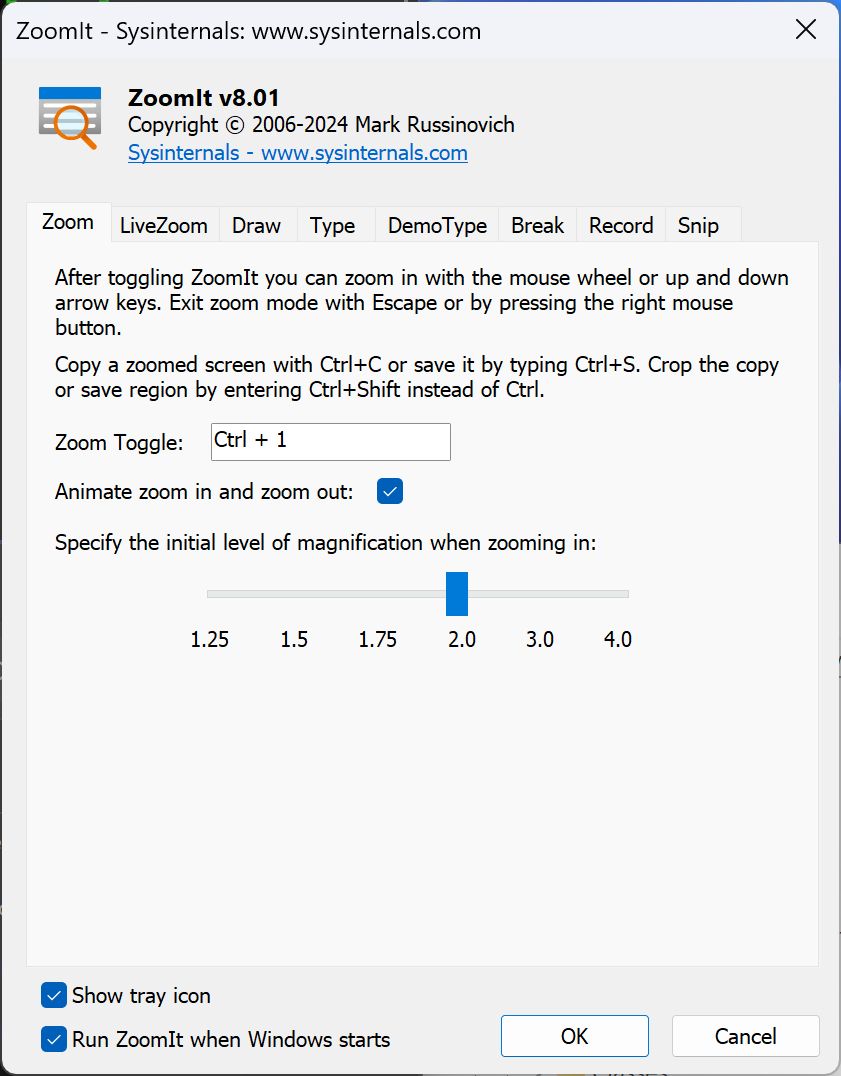
Defining this value to ‘1’ before launching ZoomIt will prevent the below window from appearing.
ShowTrayIcon #
This REG_DWORD value controls if the Tray Icon is visible when ZoomIt is running. Use the below parameter to set this values data to ‘1’
Install-ZoomIt.ps1 -ShowTrayIcon- 0 = Hide the Tray Icon
- 1 = Show the Tray Icon

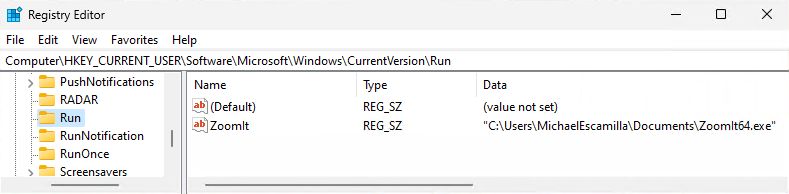
Current User Run Key #
This option is available within the Option Window of ZoomIt, the script will give you the ability to add this Run entry to automatically start the program on Logon.

Use the below switch parameter to add this Run key. While writing this blog, I’m realizing that maybe this parameter name is misleading? Hmm…
Install-ZoomIt.ps1 -RunOnStartupRegardless of which Architecture EXE you use, ZoomIt always looks for the value to be named ‘ZoomIt’.
Install-ZoomIt.ps1 #
PowerShell Gallery #
The script is available through the PowerShell Gallery | Install-ZoomIt
Install-Script -Name Install-ZoomItExample #
Lets try out the script. View the full script over on GitHub.
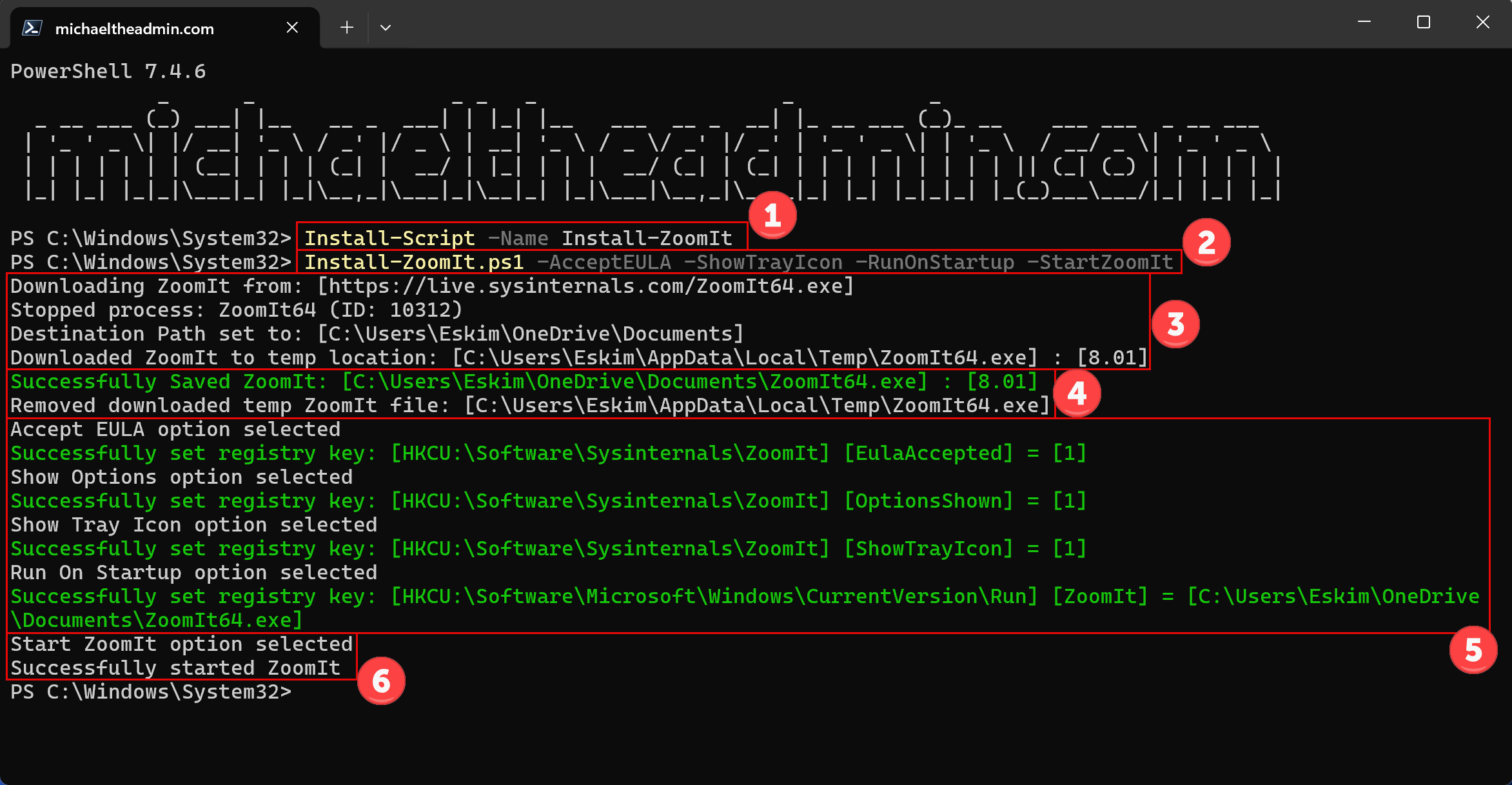
- Download the script from the PSGallery
- Run the script
- Define the Download URL
- Define the Destination Path
- Stop any existing ZoomIt processes, this is to ensure we don’t get any errors if we need to replace the EXE
- Download the EXE to the temp location
- Copy the EXE to the Destination Path
- Remove the EXE from the Temp Location
- Set any of the defined options
- And finally if desired, start the ZoomIt process
Deploy using Configuration Manager #
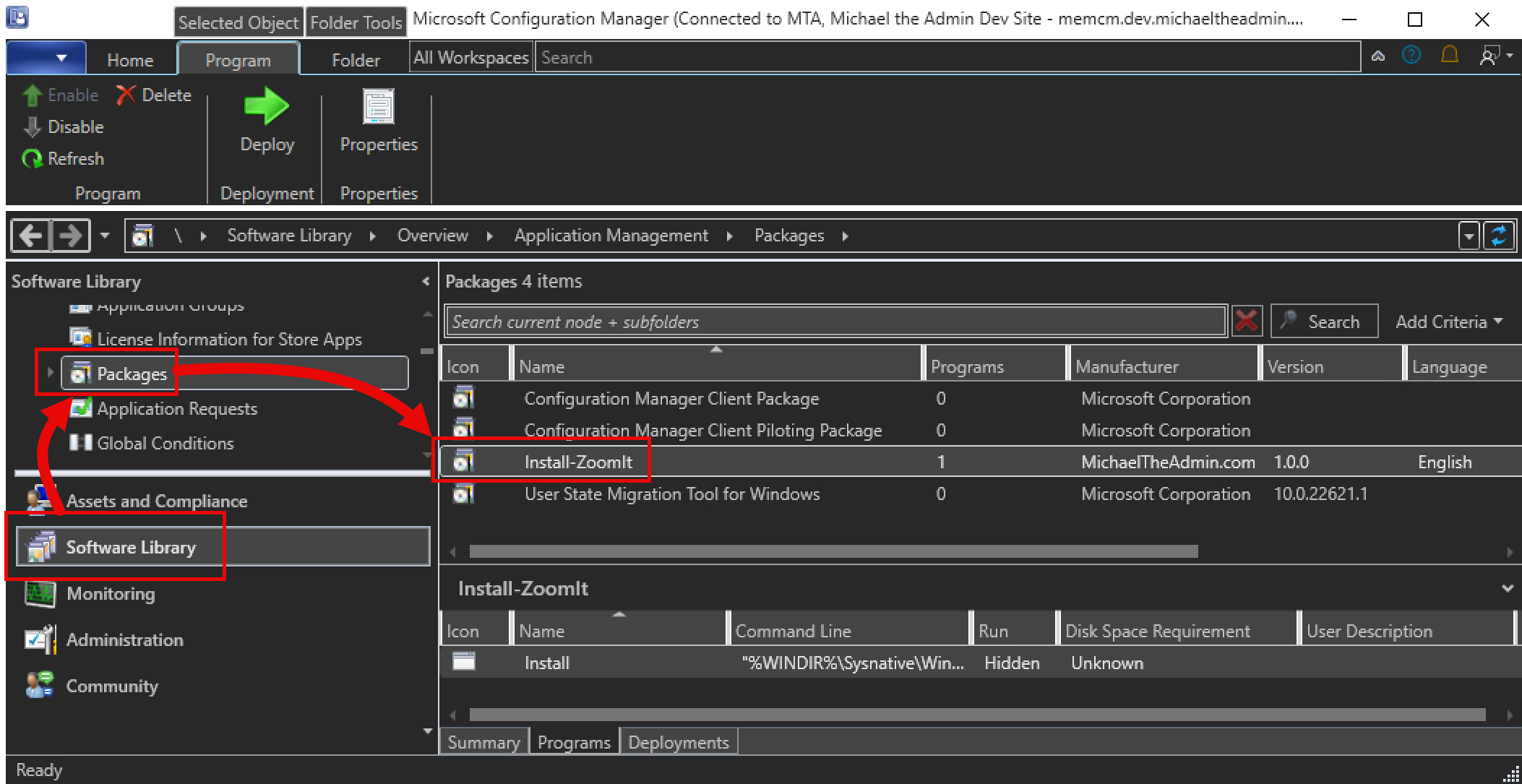
For my purposes, I decided to deploy the script using a Package, but you can use any method that best suites you.
Package #
Program #
For the program, I defined the Command line using the below.
"%WINDIR%\Sysnative\WindowsPowershell\v1.0\powershell.exe" -File Install-ZoomIt.ps1 -AcceptEULA -ShowTrayIcon -RunOnStartup -StartZoomIt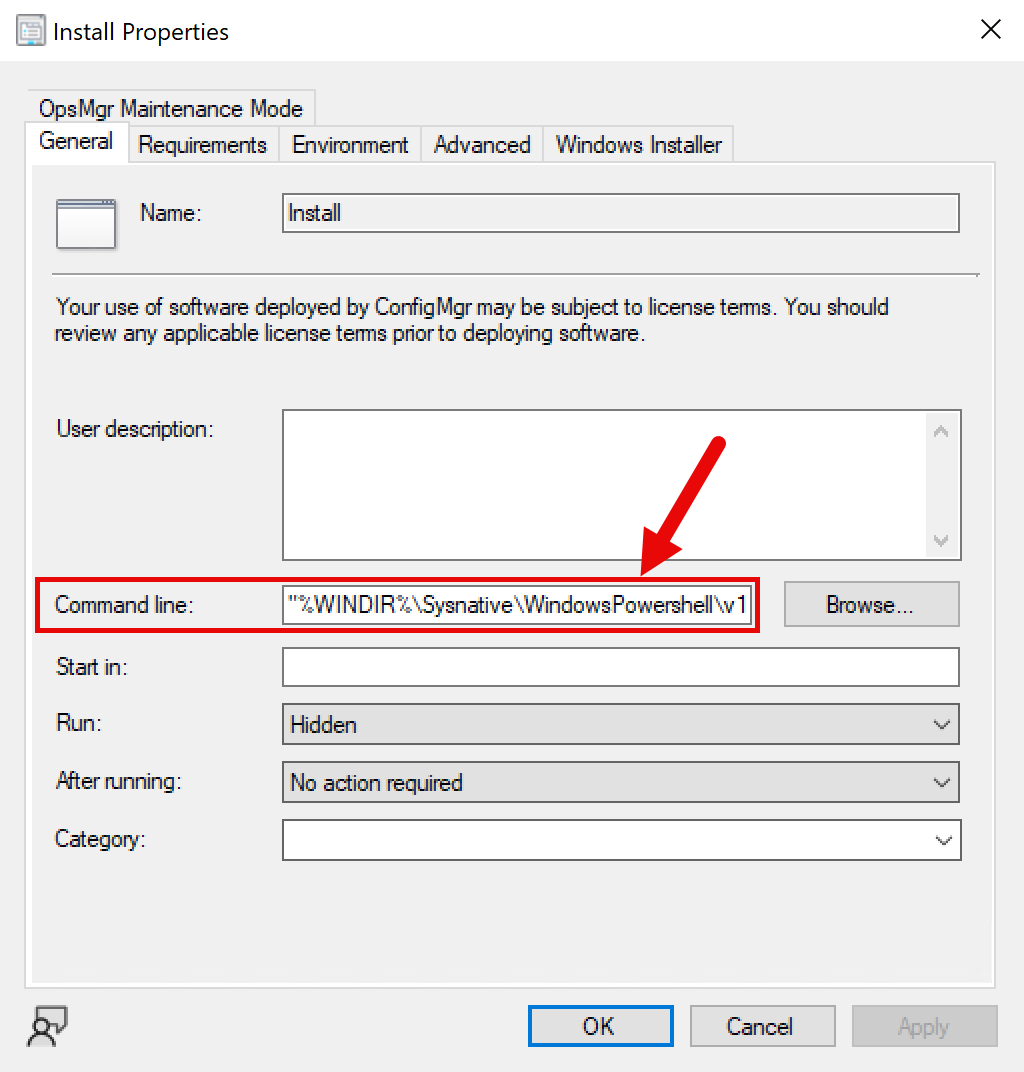
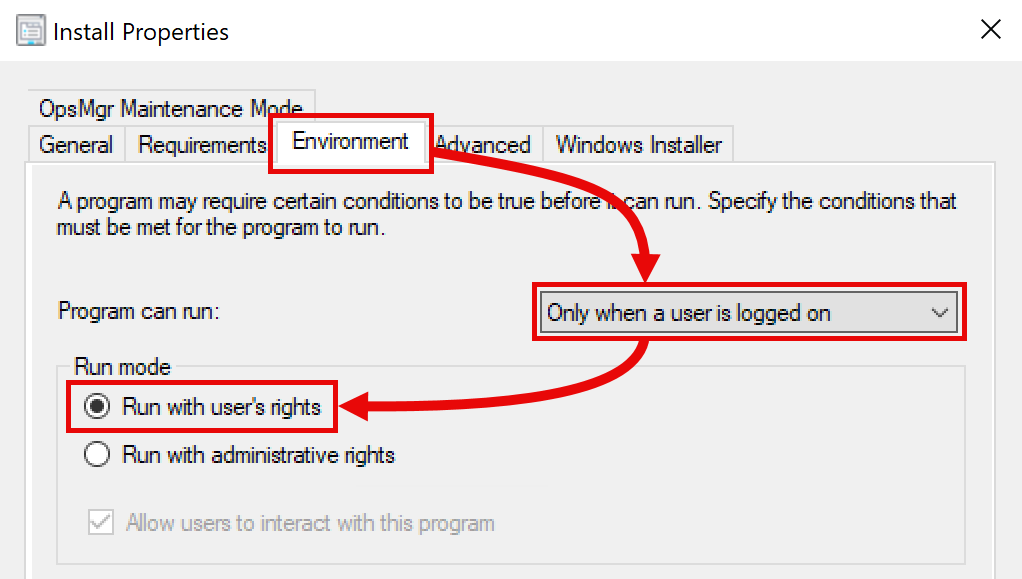
Deployment #
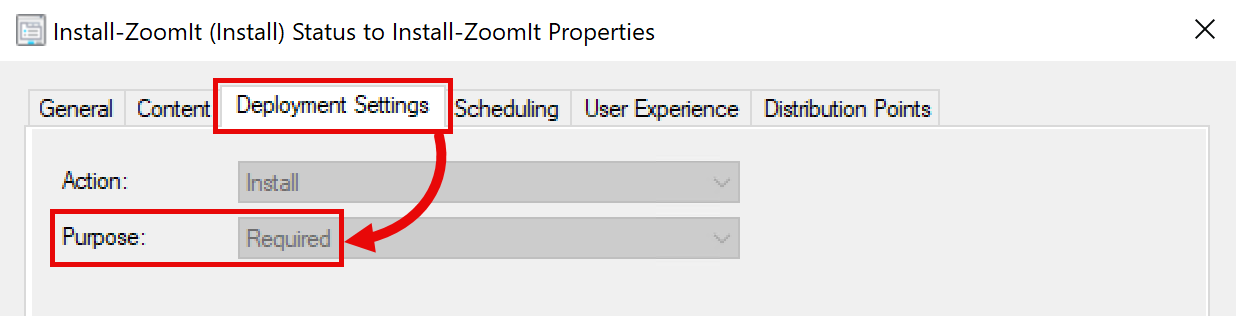
For the deployment, I set purpose as required as I want the install to be automated.
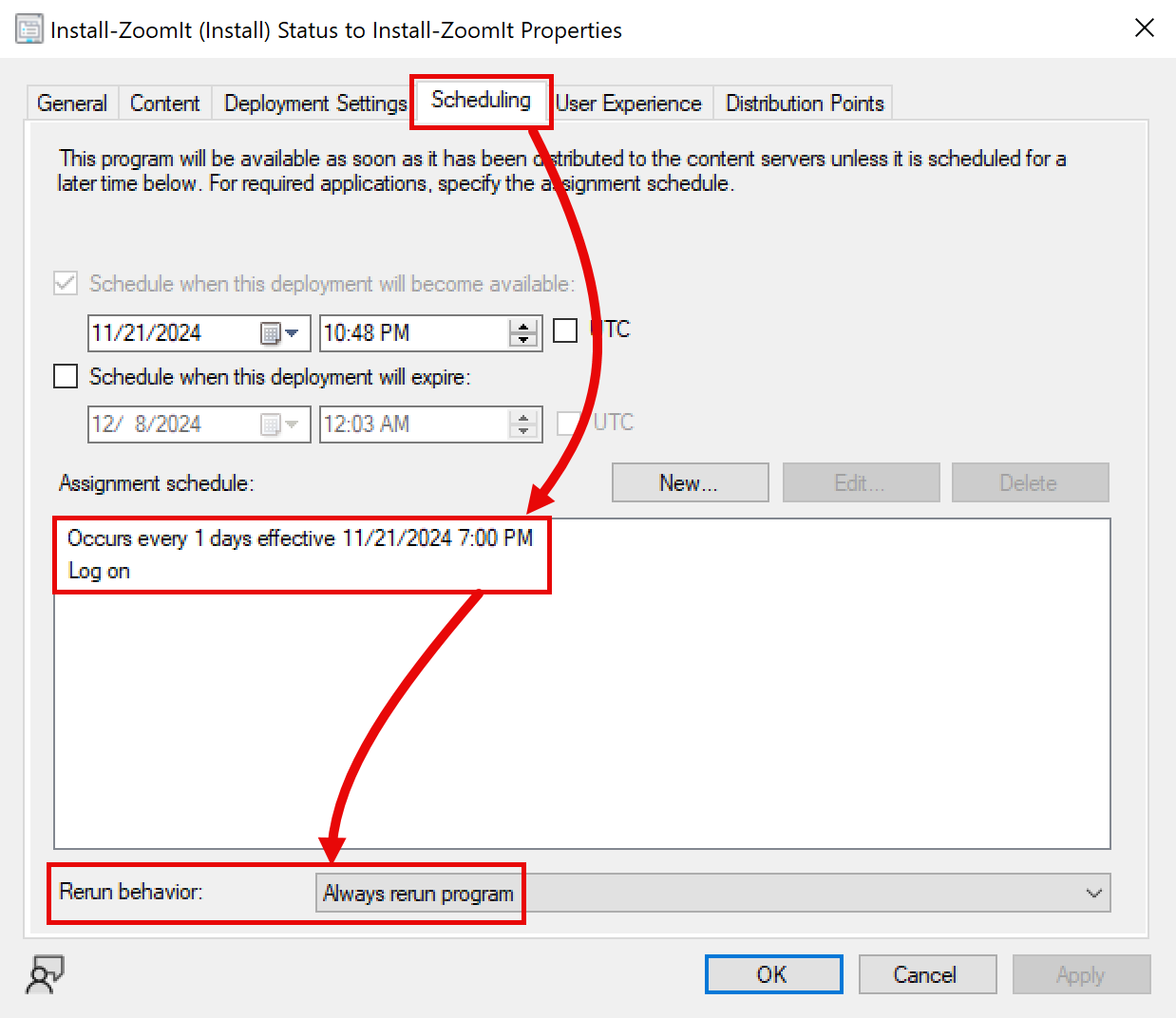
I would like ZoomIt to be available for any user account I login with. So I define some sort of Repeating schedule, and then also say to run on ‘Log on’. I also want it to always rerun.
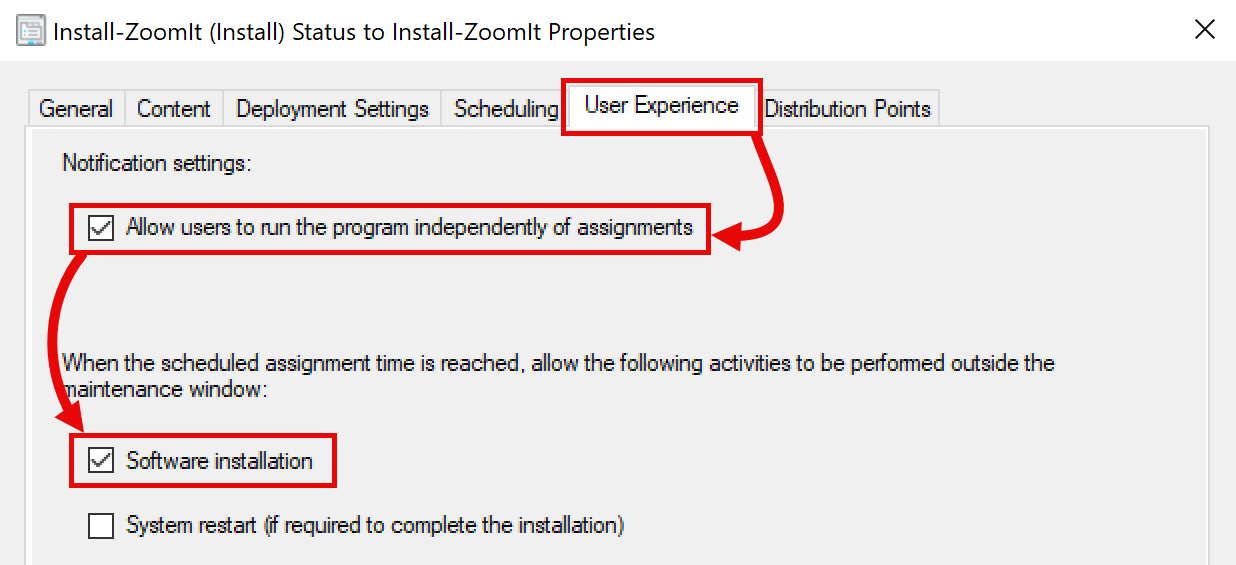
In case I ever want to manual run the script, I’ll enable the option. Then ensure that the program will run outside of maintenance windows.
Run It #
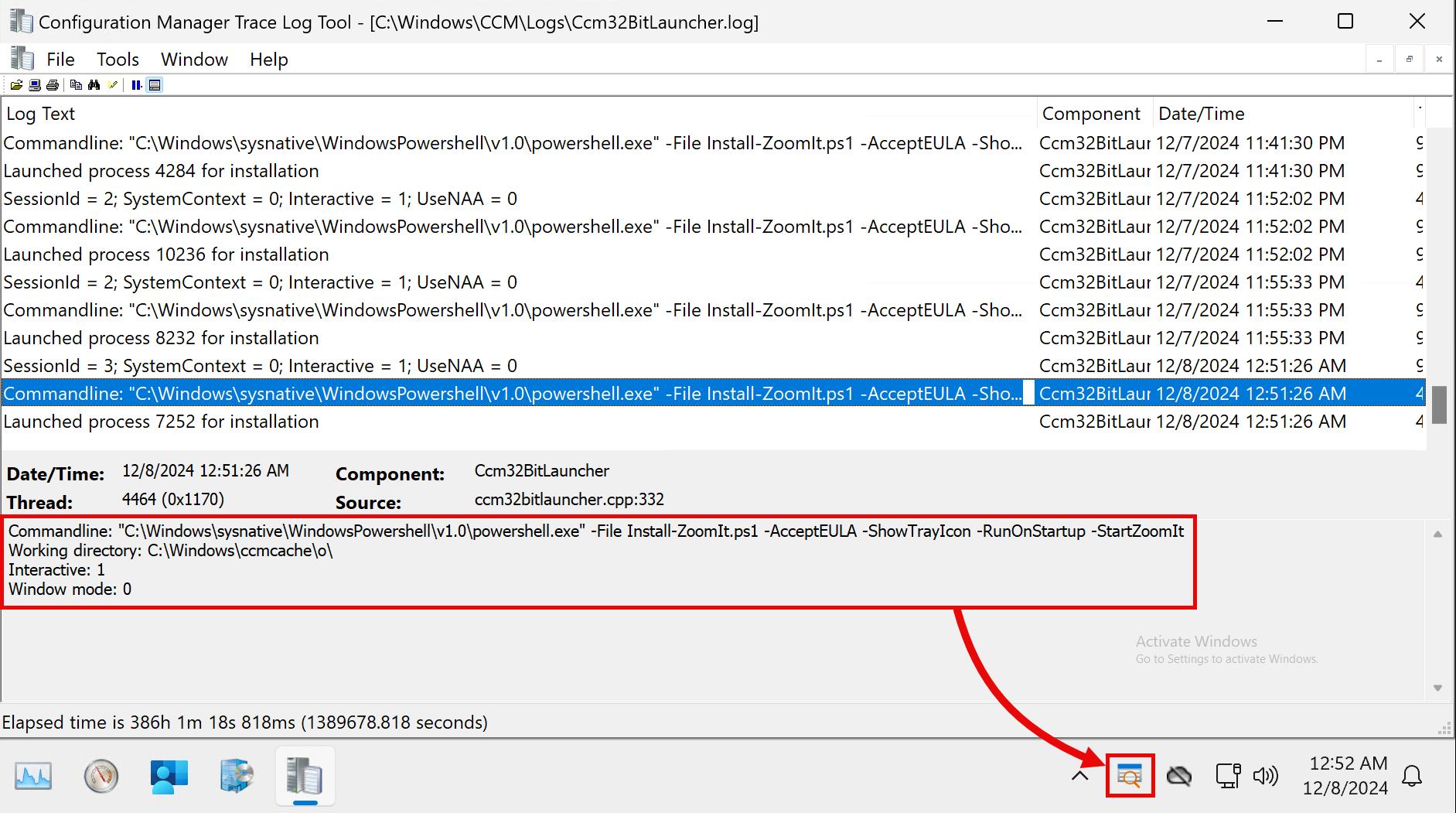
If we checkout the Ccm32BitLauncher.log, we can see the script gets executed with the set parameters.
Conclusion #
This was a fun script to write as I also used the opportunity to learn about Publishing scripts to PowerShell Gallery.
Now anytime I setup a new Machine in my Lab, I’ll know ZoomIt will be there as soon as I log into it.