


An issue you can run into with the Druva inSync is receiving a 1603 exit code from the MSI when performing an upgrade of an existing installation.
Working with a customer recently, the installation log showed:
Product: Druva inSync 8.1.3 -- Upgrade inSync Client to v7.1.x before upgrading to later versions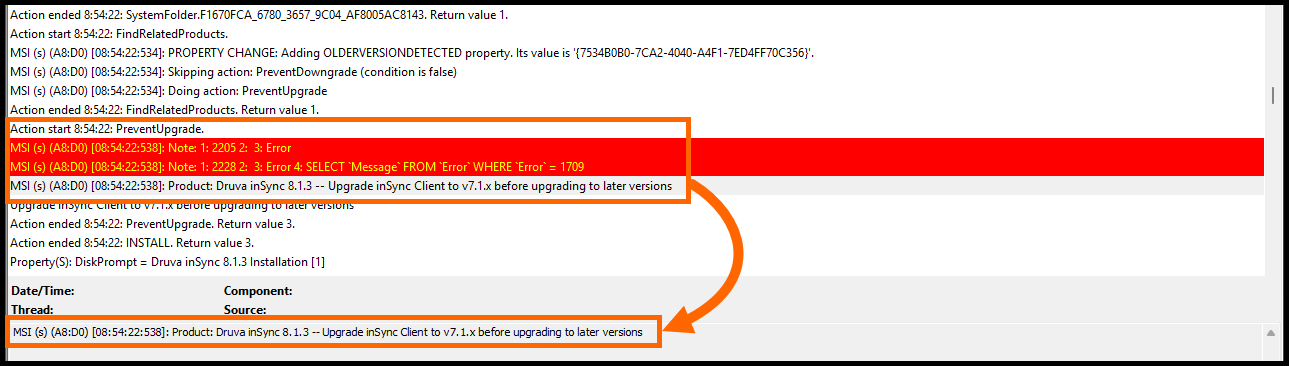
This happens because Druva only supports upgrading the inSync Client along specific paths. If the installed version is older than the supported “from” version, you must first upgrade to a supported intermediate version before moving to the latest release.
But what the documentation states vs the installers seem to differ.
Upgrade Paths #
Druva publishes an upgrade matrix that lists the supported “from” versions for each operating system and cloud type, along with the “to” version they can be upgraded to. If your device is running a version that isn’t listed as a supported “from” version, you’ll need to step up through an intermediate version first.
For full details, see Druva’s documentation: About inSync Client upgrade.
Upgrade Matrix - Windows #
The following table describes the supported upgrade paths of the inSync Client from earlier release versions to the latest version.
| Operating System | From | To |
|---|---|---|
| Windows - inSync Cloud | 7.1.0, 7.2.3, 7.2.4, 7.2.5, 7.5.1, 7.5.2, 7.5.3, 7.5.4, 7.5.6, 7.5.7 | 8.0.x |
| Windows - inSync GovCloud | 7.1.0, 7.2.5, 7.5.1, 7.5.6 | 7.5.7 |
Upgrading to inSync Client v7.2.1 on Windows is supported only from inSync Client v6.5.
Upgrade Options - LessThan v7.1 #
If you currently have installation that are lower than version 7.1, you have a few options to get upgraded.
Custom App - 7.x #
You can download older 7.x versions of the inSync Client from Druva’s download page: Druva Download.
Once you have the installer, you can create a Custom App in Patch My PC to deploy it as an UpdateOnly. See the documentation for the steps: Create a Custom App.
This will get those older version updated to a supported version that the 8.x installer can upgrade.
Pre-Script to uninstall older versions #
Another option is to add a ‘Pre-Script’ to auto uninstall any version lower than the supported “from” version.
Edit your deployment and enable the ‘Scripts’ tool, then select ‘Add’ for the Pre-Install script.
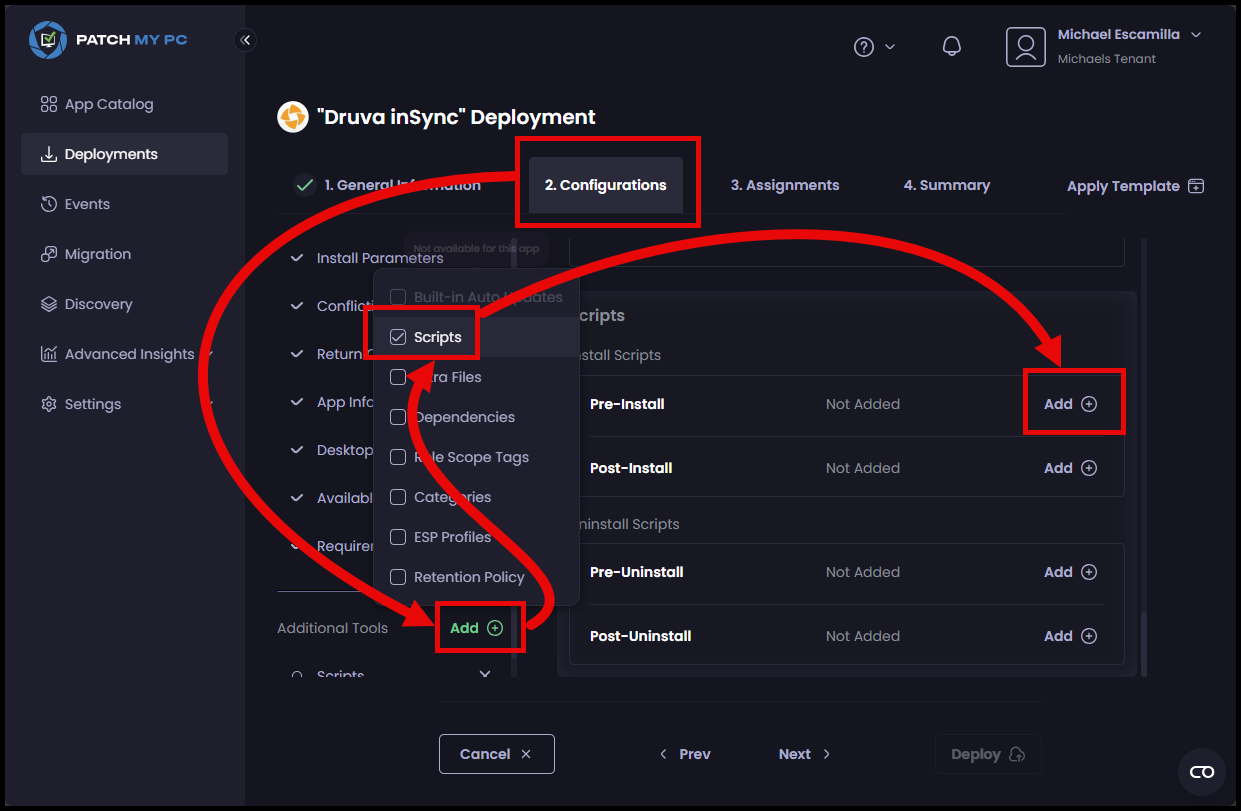
Download the Uninstall-Software.ps1 script from our GitHub. It’s the same script we use with our other products:
Import the script and enter the below for the Arguments:
-DisplayName "Druva inSync*" -Architecture Both -HivesToSearch HKLM -VersionLessThan "7.1.0" -UninstallAll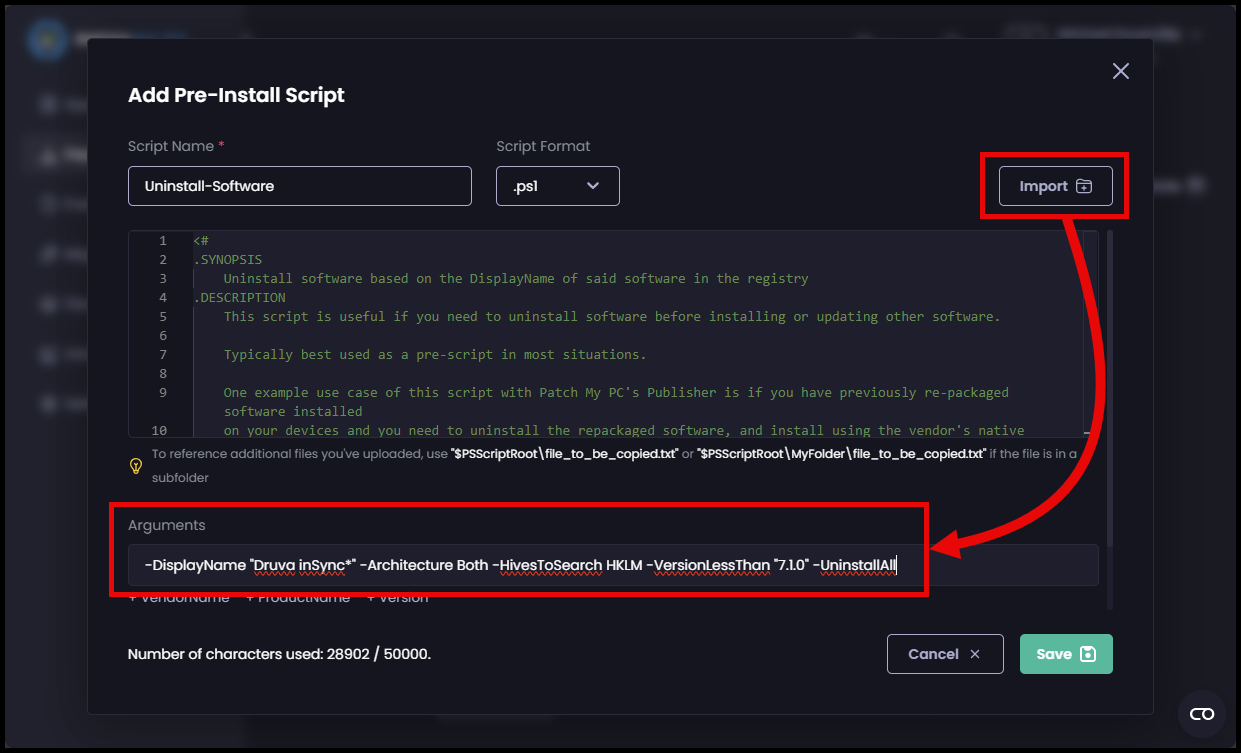
Once you hit save, the deployment will be recreated. Let that sync to the device and check if the errors remain.