


As I continue to learn more about application packaging, especially with MSIs, I have started using Master Packager more frequently. You can easily view and edit MSIs for free using its Community Edition, or upgrade to the Pro tier for advanced features across its full suite of products.
Issue with Elgato Control Center Silent Installation #
We got a report from a customer that the installation for Elgato Control Center 1.9.0.818 was erroring with a 1603 exit code.
When viewing the MSI log, we see the following error during the LaunchConditions step:
This application requires .NET Framework 4.8.1. Please install .NET Framework 4.8.1, then run this installer again.
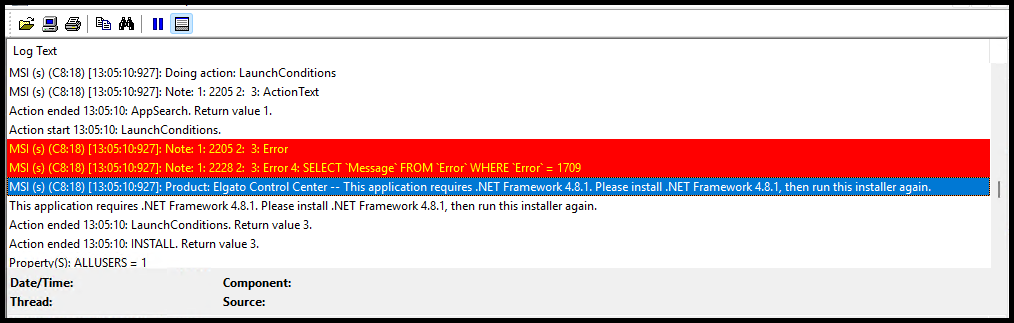
This was definitely strange because we were on a Windows 11 25H2 build that comes with .NET Framework 4.8.1 pre-installed.
Interactive Installation #
But… when installed interactively, the installation succeeded without any errors.
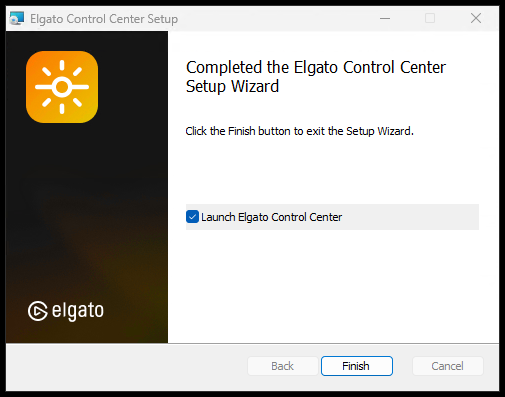
What does this tell us? #
So what’s going on? Based on this observation, the LaunchConditions are failing to be satisfied during a silent installation, but succeed during an interactive installation.
So let’s see why this is happening.
Why Master Packager Helps #
MSI logs can tell you which condition failed, but they do not always make the installer authoring issue obvious. While not impossible to figure out within the log, having to manually parse through it can be cumbersome.
Master Packager lets you inspect the MSI tables directly, compare things like the UI and execute sequences, and identify a custom action, property, or condition responsible for the failure.
Inspect the MSI with Master Packager #
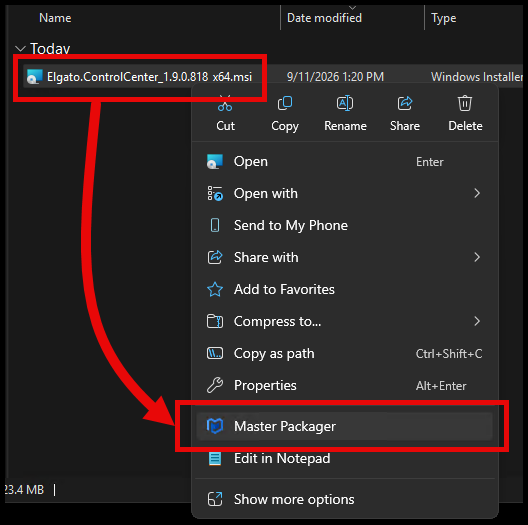
Open the MSI with Master Packager.
InstallUISequence for the Interactive Installation #
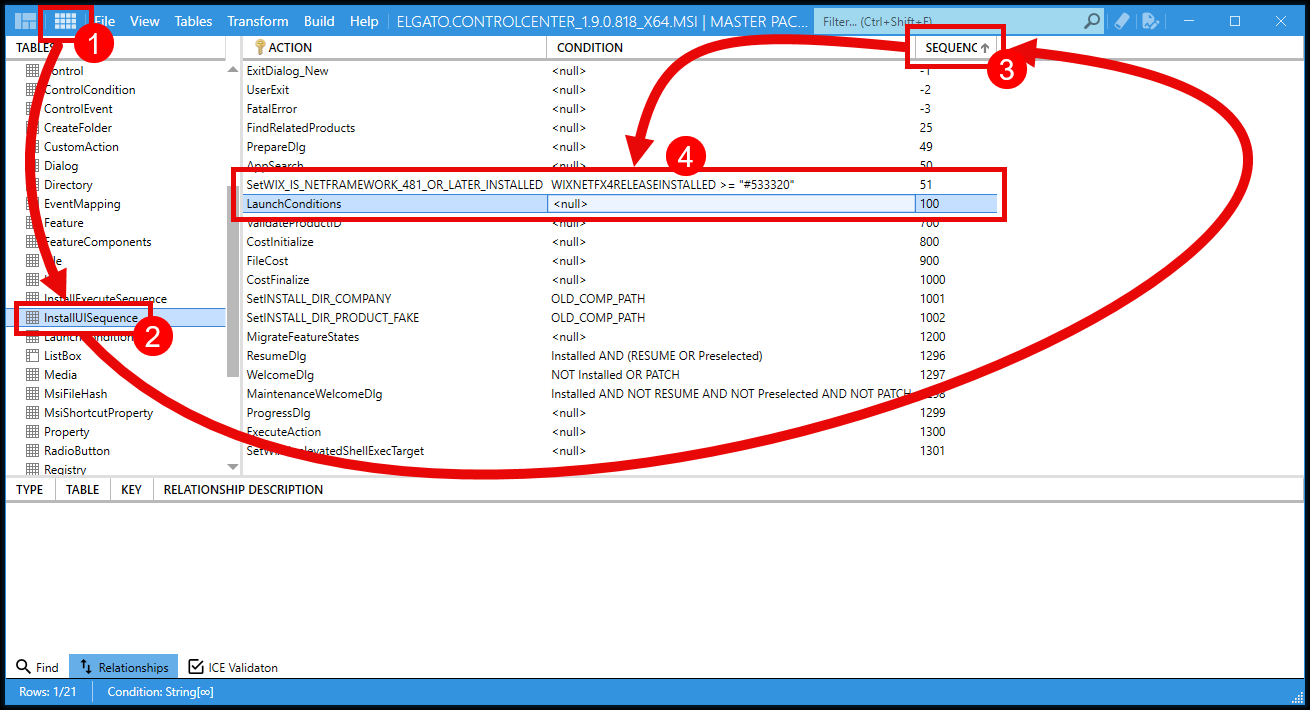
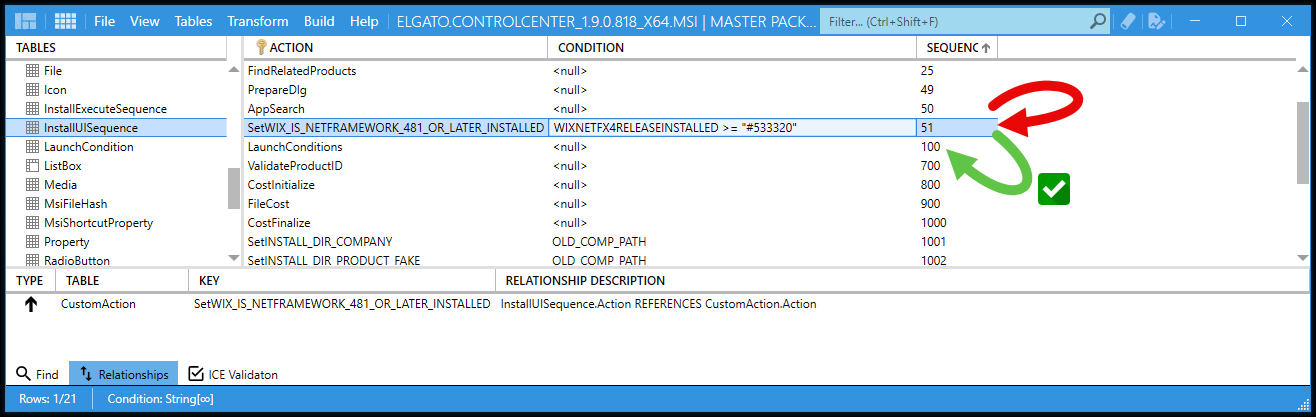
Let’s take a look at the InstallUISequence table for the interactive installation. This table defines the sequence of actions that occur during the user interface phase of the installation. This table is not used when running in silent mode.
- You can enable Table Editor in Master Packager from the top menu.
- Navigate to the
InstallUISequencetable. - Optional: You can sort the table to see the order more easily.
- Finally, we can see a custom action step,
SetWIX_IS_NETFRAMEWORK_481_OR_LATER_INSTALLED, before LaunchConditions.
LaunchConditions #
This is a table in the MSI that defines the conditions that must be met for the installation to proceed. If any of these conditions are not satisfied, the installation will be halted with the defined error message.
If we look at the LaunchConditions table in the MSI, we can see that there is a condition row that contains the property WIX_IS_NETFRAMEWORK_481_OR_LATER_INSTALLED.
This is a WiX Toolset property that indicates whether the required version of the .NET Framework is installed.
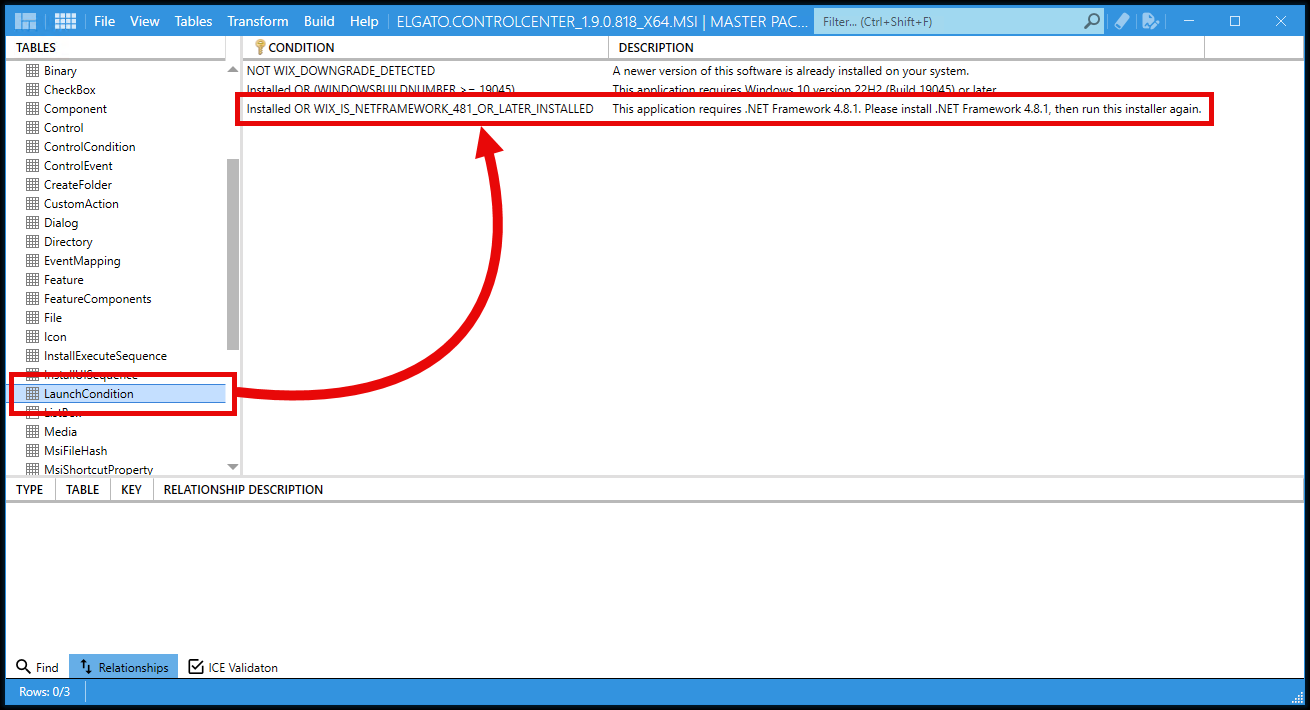
But how is this property set? This is done in the Custom Action SetWIX_IS_NETFRAMEWORK_481_OR_LATER_INSTALLED.
CustomAction #
If we look at the CustomAction table for SetWIX_IS_NETFRAMEWORK_481_OR_LATER_INSTALLED, we can see that when this is executed, it sets the WIX_IS_NETFRAMEWORK_481_OR_LATER_INSTALLED property to 1.
When set to 1, it indicates that the required version of the .NET Framework is installed, and the LaunchConditions will evaluate successfully.
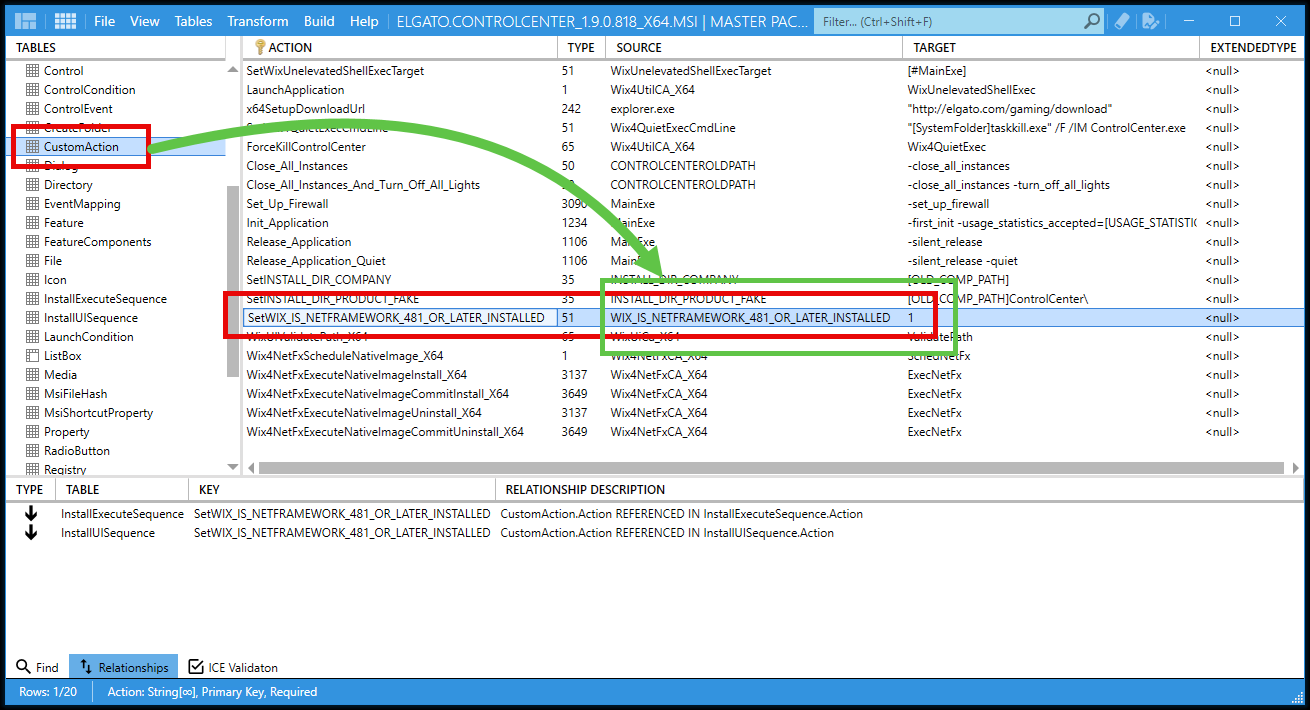
So what controls whether or not the CustomAction step runs?
InstallUISequence Condition #
In the InstallUISequence table, each custom action has a condition that determines when it should be executed. The condition for SetWIX_IS_NETFRAMEWORK_481_OR_LATER_INSTALLED is:
WIXNETFX4RELEASEINSTALLED >= "#533320"
And what is the WIXNETFX4RELEASEINSTALLED property?
AppSearch #
The WIXNETFX4RELEASEINSTALLED property is set in the AppSearch table and is tied to a Registry search NetFx4ReleaseInstalled. This is tied to a Registry lookup in the RegLocator table.
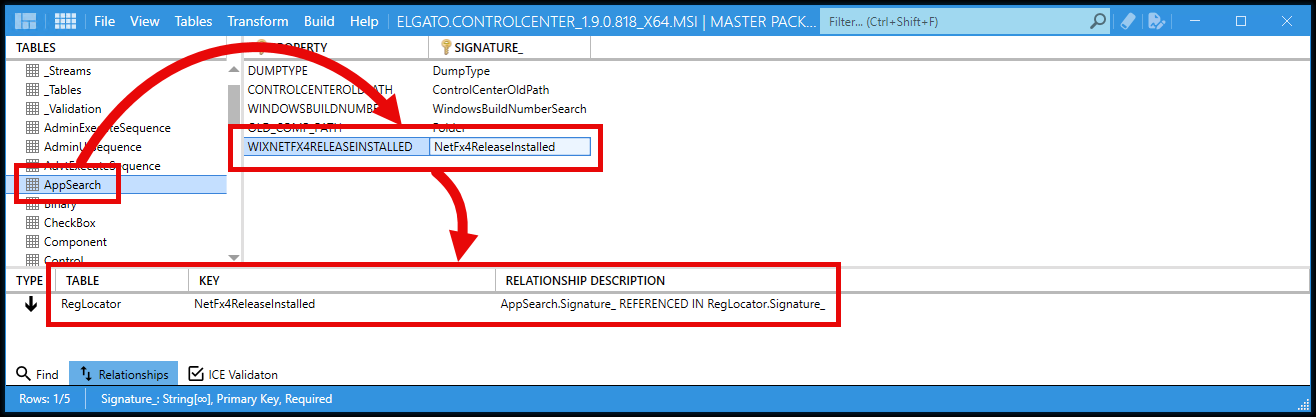
RegLocator #
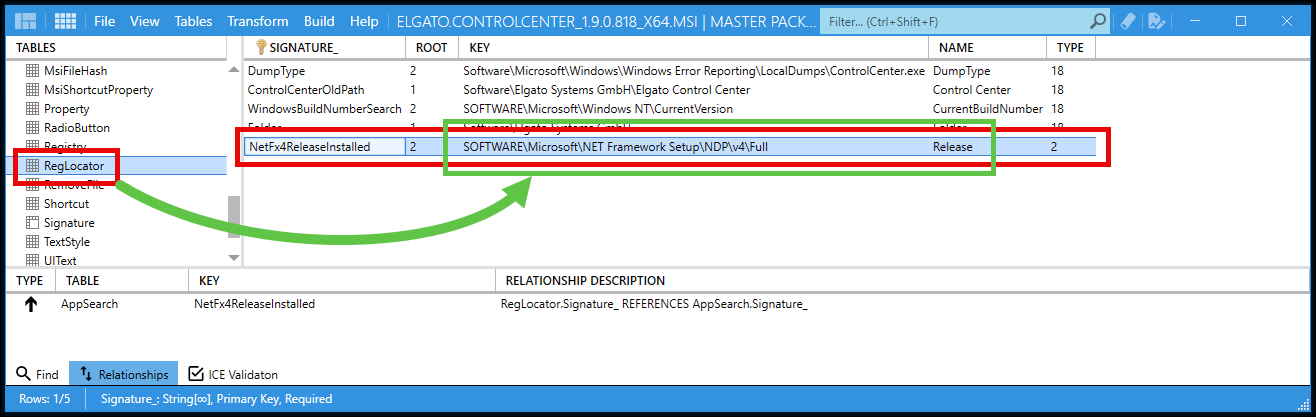
And if we hop over to the RegLocator table, we can see the details of the registry search tied to NetFx4ReleaseInstalled.
It is looking for the data in the Release value under the key HKEY_LOCAL_MACHINE\SOFTWARE\Microsoft\NET Framework Setup\NDP\v4\Full.
Bring it all together #
When InstallUISequence evaluates the condition to run SetWIX_IS_NETFRAMEWORK_481_OR_LATER_INSTALLED, it checks whether the value of the WIXNETFX4RELEASEINSTALLED property is greater than or equal to 533320.
If it is, then the custom action will execute and set the WIX_IS_NETFRAMEWORK_481_OR_LATER_INSTALLED property to 1 and the LaunchConditions will be satisfied.
The order of InstallUISequence below sets the properties and values at the correct time so the next step can use them.
flowchart TD
    AppSearch --> SetWIX_IS_NETFRAMEWORK_481_OR_LATER_INSTALLED
    subgraph Execution [ ]
      SetWIX_IS_NETFRAMEWORK_481_OR_LATER_INSTALLED:::foo --> LaunchConditions
    end
    classDef foo stroke:#0f0
What’s wrong with the silent installation? #
Now that we know what needs to happen, and in what order, let’s take a look at the InstallExecuteSequence table.
InstallExecuteSequence #
Similar to the InstallUISequence, the InstallExecuteSequence table defines the sequence of actions that occur during the execution phase of the installation.
Taking a quick peek, we can quickly see the issue.
The SetWIX_IS_NETFRAMEWORK_481_OR_LATER_INSTALLED custom action is set to run after LaunchConditions.
flowchart TD
    AppSearch --> LaunchConditions
    subgraph Execution [ ]
      LaunchConditions --> SetWIX_IS_NETFRAMEWORK_481_OR_LATER_INSTALLED:::foo
    end
    classDef foo stroke:#f00
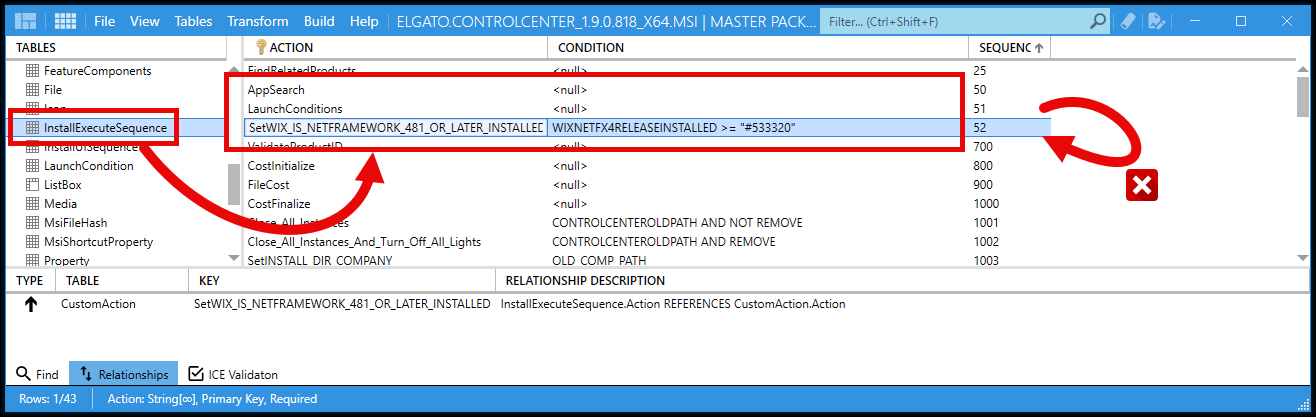
As a result, the launch condition is evaluated before the property has been populated. The install then fails even though the required .NET Framework version is present.
Workaround #
Is there anything you can do right now to work around this issue?
Until Elgato corrects the MSI InstallExecuteSequence order, you can manually set the WIX_IS_NETFRAMEWORK_481_OR_LATER_INSTALLED property when running the silent installation via a parameter.
WIX_IS_NETFRAMEWORK_481_OR_LATER_INSTALLED=1I would consider this a safe workaround for now, as most machines should be running versions of Windows that include .NET Framework 4.8.1 or later. If you are not, what are you doing? Update your computer.
Command Line Example #
From your command line, it would look like this:
msiexec /i Elgato.ControlCenter_1.9.0.818_x64.msi /qn ALLUSERS=1 WIX_IS_NETFRAMEWORK_481_OR_LATER_INSTALLED=1
Patch My PC Cloud #
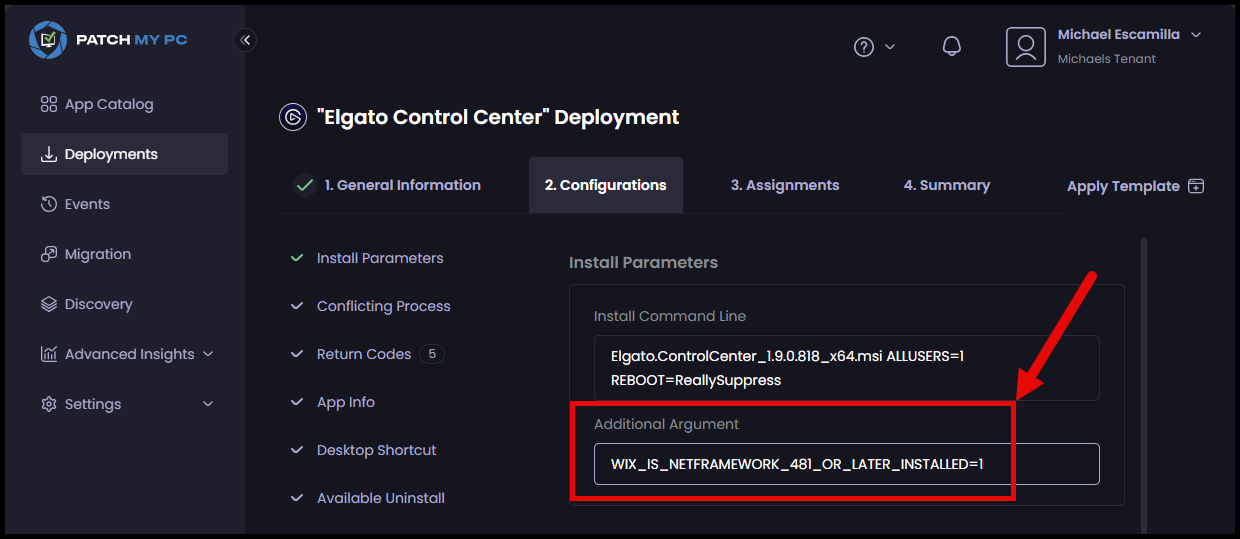
For those of you using the Patch My PC Cloud for deployment, you can set the WIX_IS_NETFRAMEWORK_481_OR_LATER_INSTALLED property in the ‘Additional Arguments’ section of your deployment configuration to work around this issue.
Patch My PC Publisher #
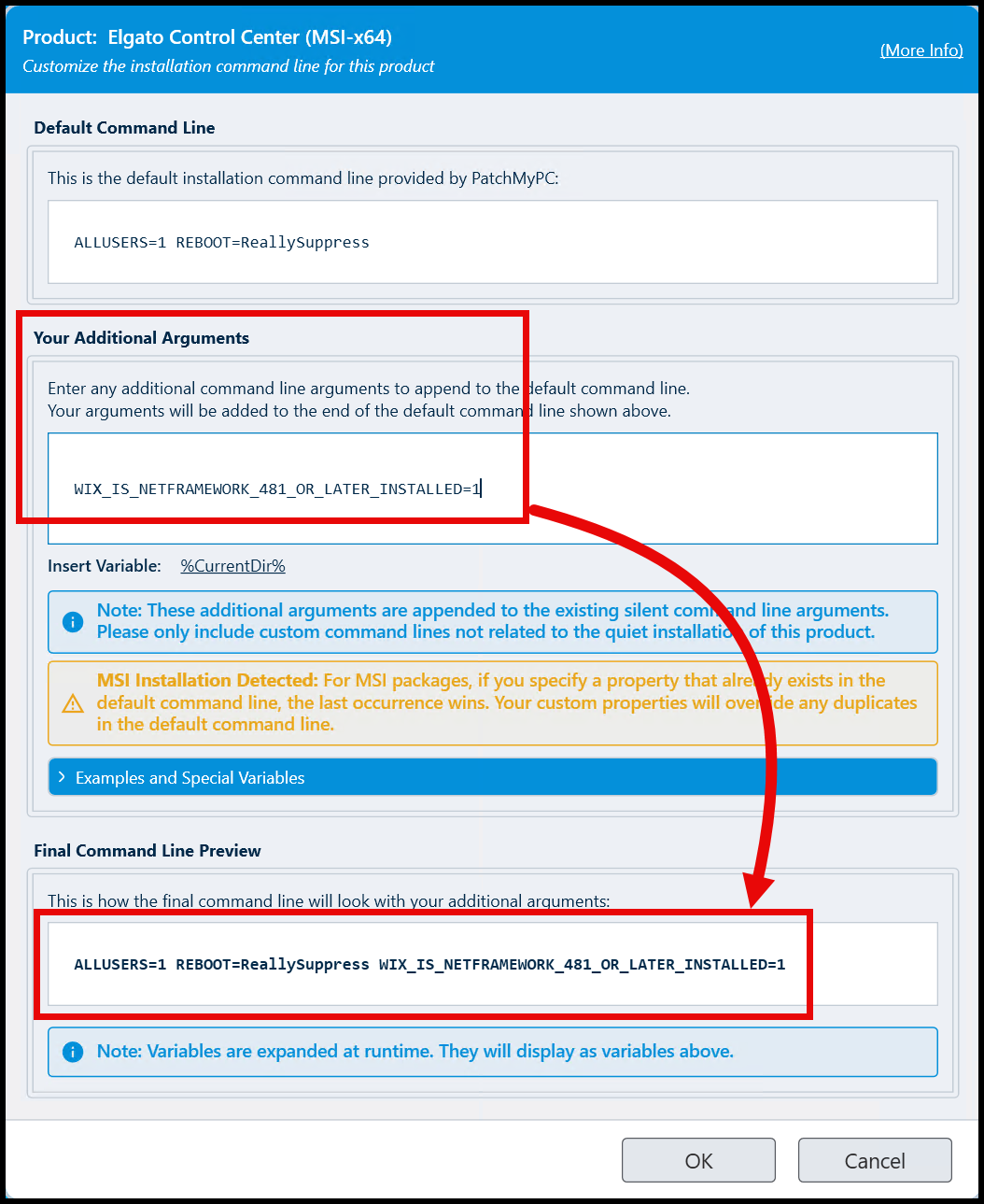
If you’re using the Patch My PC Publisher for deployment, you can set the WIX_IS_NETFRAMEWORK_481_OR_LATER_INSTALLED property in the ‘Your Additional Arguments’ section of the Modify Command Line window to work around this issue.
Conclusion #
Order of operations is important. This scenario shows that even if you have all the necessary parts, a simple misordering can cause the installation to fail.
I am really enjoying exploring the intricacies of MSI installations and Master Packager is making it so much easier. Go give it a try!
Hopefully this post helps others not just with this specific issue, but also with troubleshooting and exploring MSIs in general.