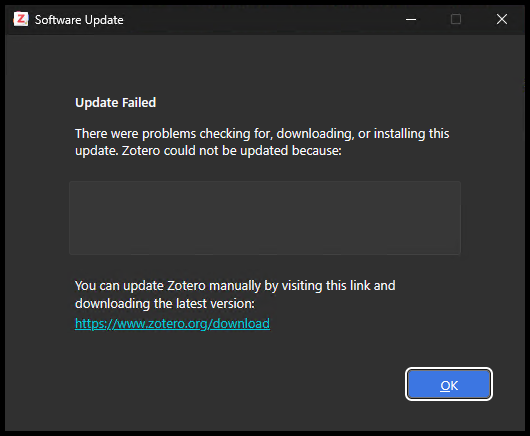

Zotero uses Firefox’s application update system, and this means that update behavior can be controlled using the same policies that apply to Firefox.
Zotero Reference #
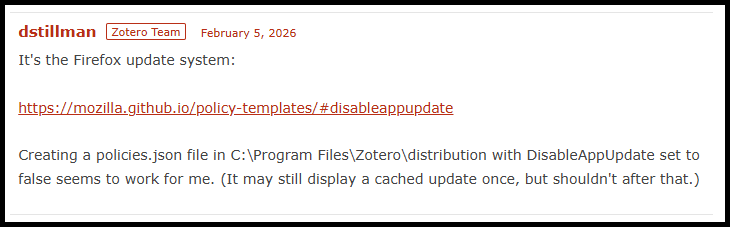
In this Zotero forum discussion, the team confirms that Zotero uses Firefox’s update system and suggests that using the DisableAppUpdate policy should work.
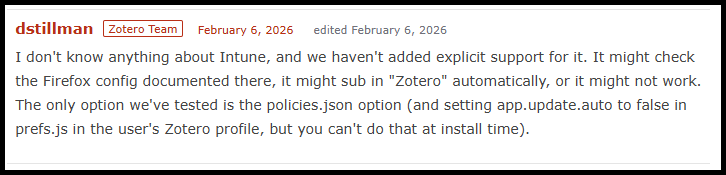
The Zotero team noted that its tested approach is policies.json; they also mentioned a profile preference as an alternative:
“The only option we’ve tested is the policies.json option (and setting app.update.auto to false in prefs.js in the user’s Zotero profile, but you can’t do that at install time).”
Registry setting #
Create the following value:
| Registry key | Value name | Type | Data |
|---|---|---|---|
HKEY_LOCAL_MACHINE\SOFTWARE\Policies\Mozilla\Zotero |
DisableAppUpdate |
REG_DWORD |
1 |
The policy applies machine-wide and requires administrator permissions to configure. Restart Zotero for the policy to take effect.
Run this PowerShell command as an administrator to create the registry value:
New-Item -Path 'HKLM:\SOFTWARE\Policies\Mozilla\Zotero' -Force | Out-Null
New-ItemProperty -Path 'HKLM:\SOFTWARE\Policies\Mozilla\Zotero' -Name 'DisableAppUpdate' -Value 1 -PropertyType DWord -Force
With this value set to 1, Zotero’s automatic updater and its manual update check are disabled. To restore the default update behavior, remove the DisableAppUpdate value.
Behavior #
With the DisableAppUpdate policy set to 1, Zotero will not automatically check for updates, and users will not be able to manually initiate an update check through the Zotero interface.
Check for Updates #
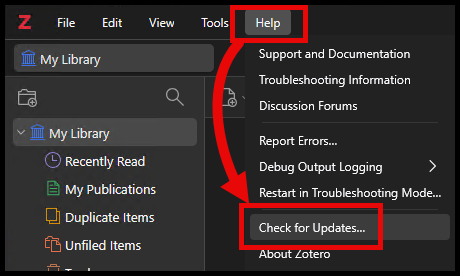
As mentioned, when the DisableAppUpdate policy is set to 1, the “Check for Updates” option in the Zotero application will be disabled, preventing users from manually initiating an update check.
DisableAppUpdate = 0 or not set #
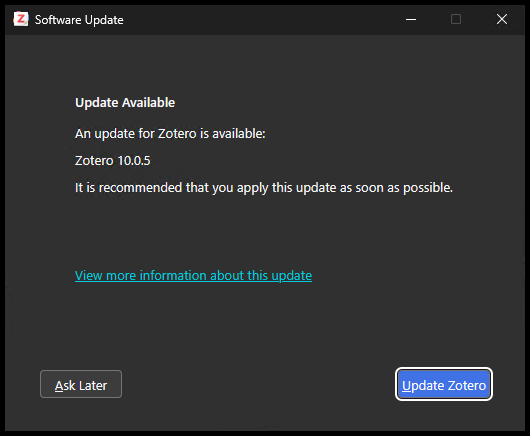
When the DisableAppUpdate policy is set to 0 or is not configured, Zotero will follow its default update behavior and the UI will look like below when checking for a new version.
DisableAppUpdate = 1 #
When the DisableAppUpdate policy is set to 1, the “Check for Updates” option in the Zotero application will will look like the below.