

Related Blog Post #

README #
GetMSIInformation #
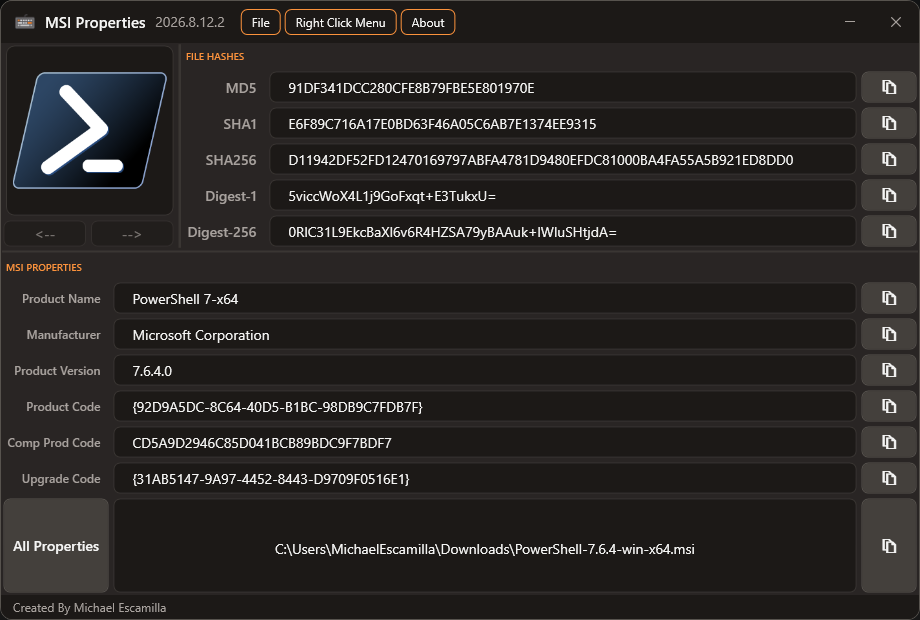
Drag and Drop Application to view key MSI Information and copy the values to the Clipboard
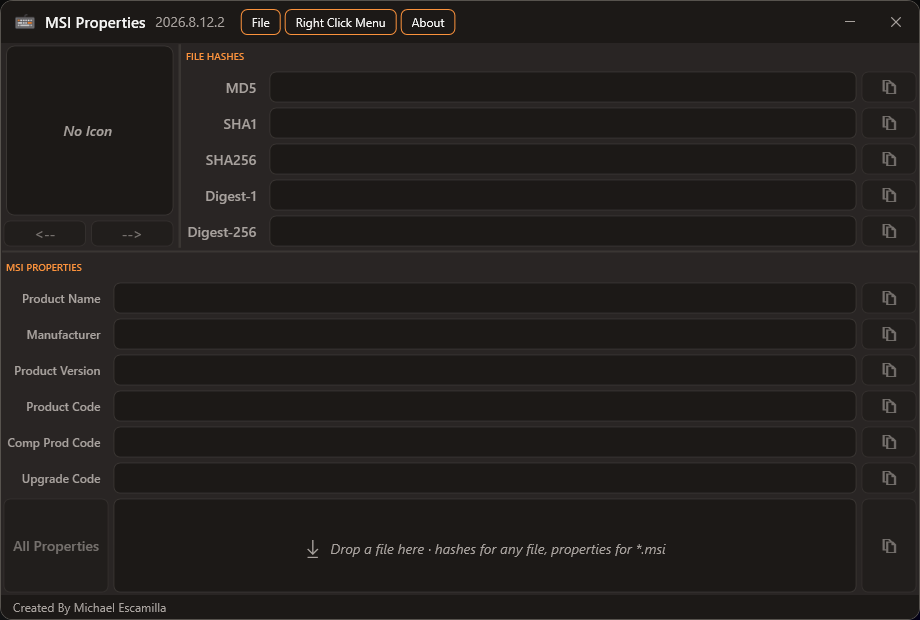
Example after loading an MSI #
Quick Access #
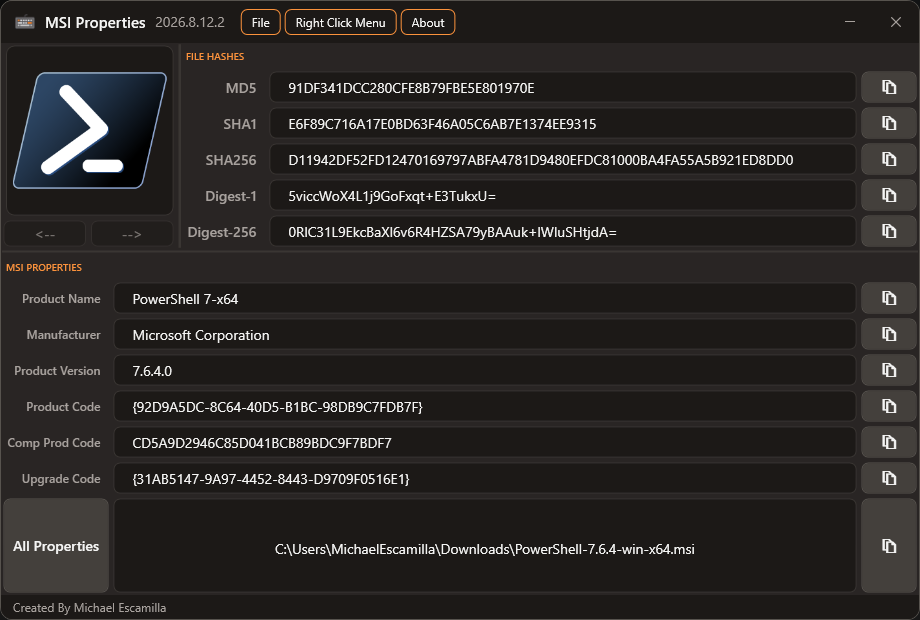
Quickly access the app by invoking the URL msiapp.michaeltheadmin.com
Invoke-Expression #
iex (irm msiapp.michaeltheadmin.com)
Check for Updates #
When the app launches, it quietly checks for a newer version in the background, so it never slows down or freezes while you use it.
If an update is found, you’ll see an Update Available item appear in the menu.
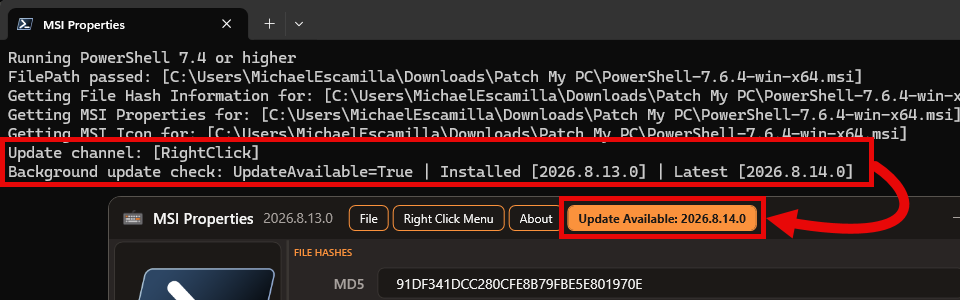
You can also check for updates anytime from the About menu.
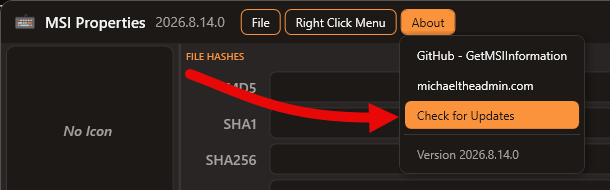
Updates are based on the Releases published on GitHub.
Icon Extraction #
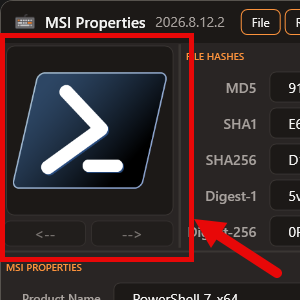
If the MSI contains an icon, it will be extracted and displayed
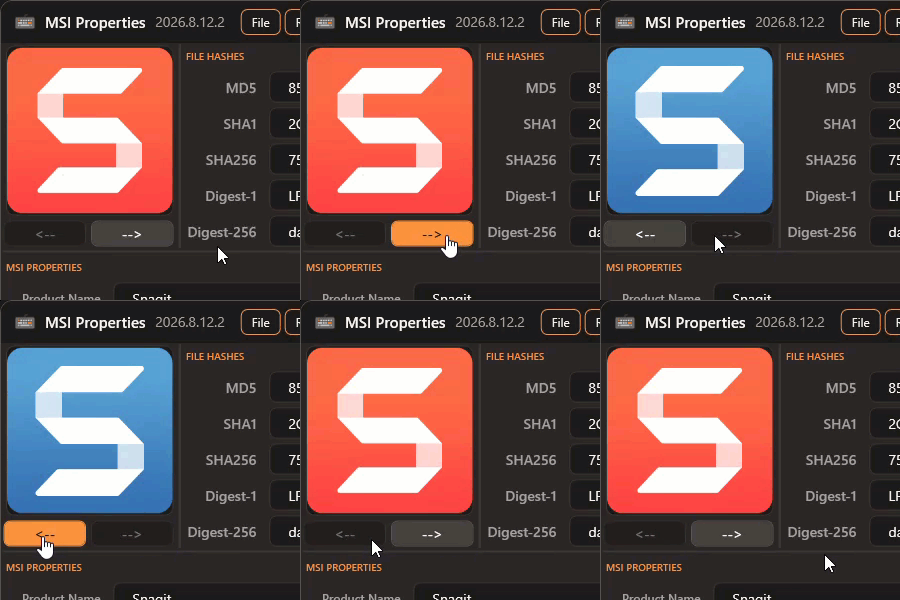
If multiple icons are found, you can view each one using the navigation arrows
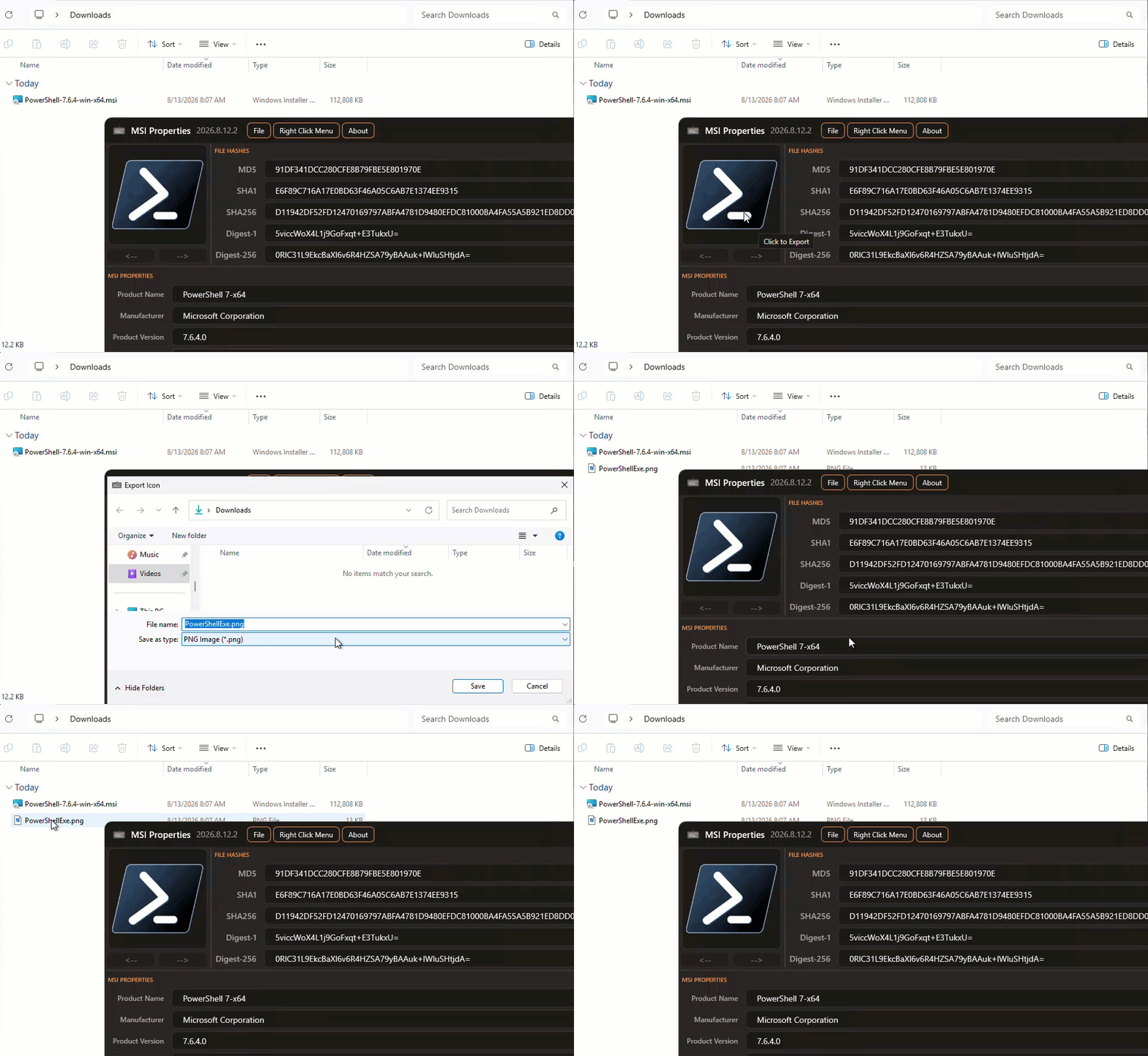
Export Icon #
Click the desired icon to Export
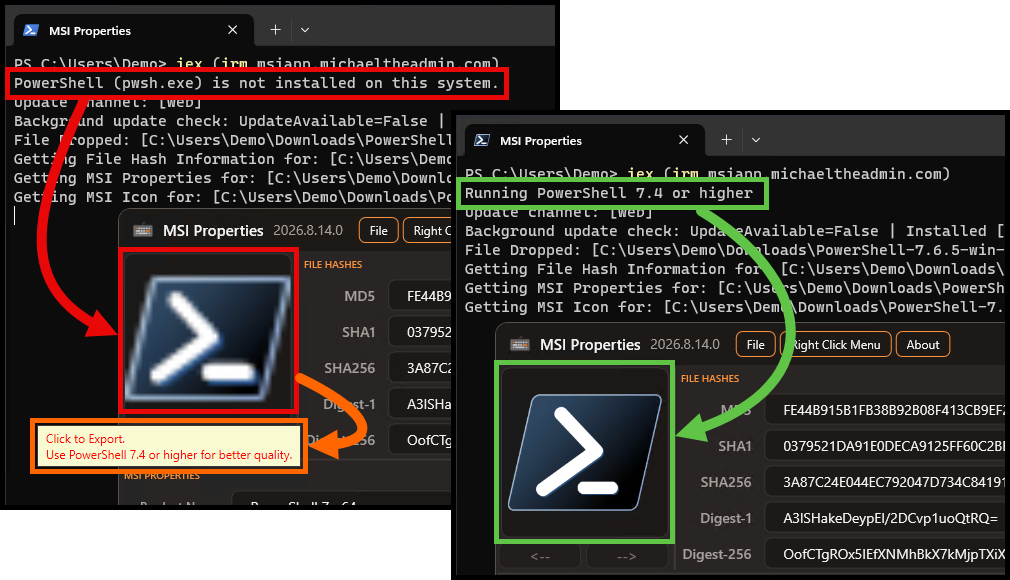
Export Quality #
Use PowerShell (pwsh.exe) to export higher quality icons, .NET 8+ has newer methods that make it eaisier to extract higher quality icons. You’ll see the quality difference in the preview
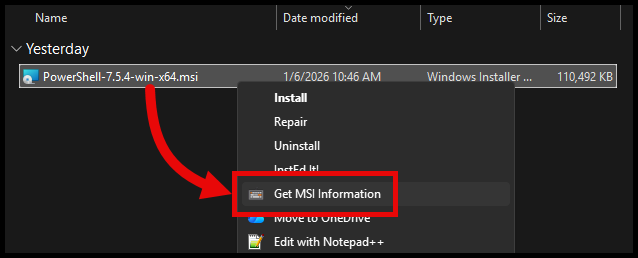
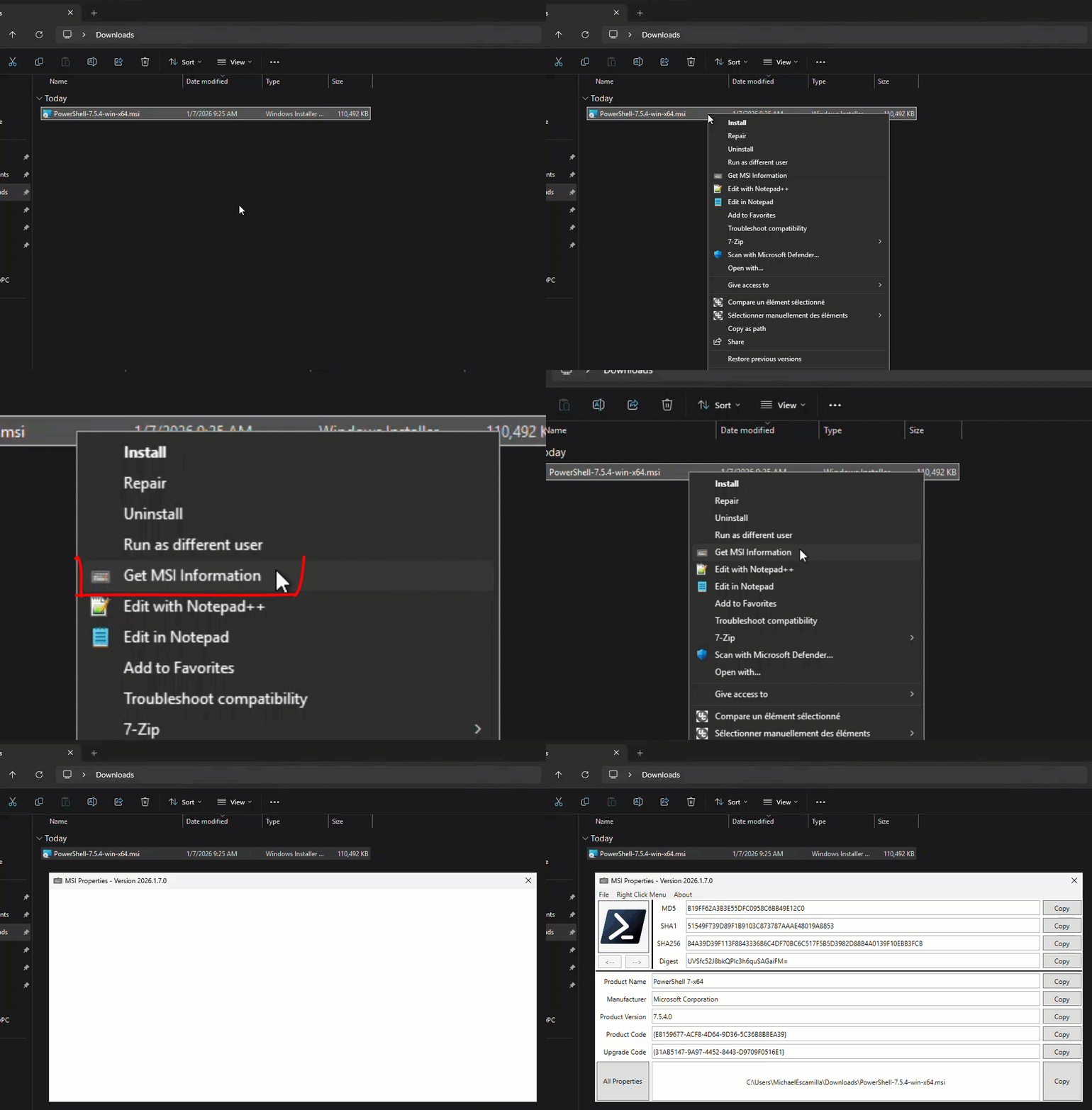
Right-Click Context Menu Option #
Right-Click Context Menu Option to Lauch the app and automatically load the information
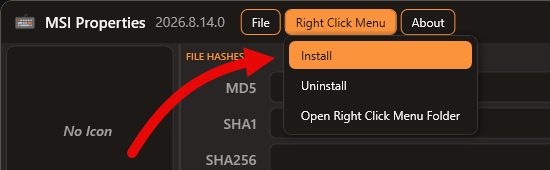
Install the Context Menu Option #
Install the Context Menu Option from the menu bar
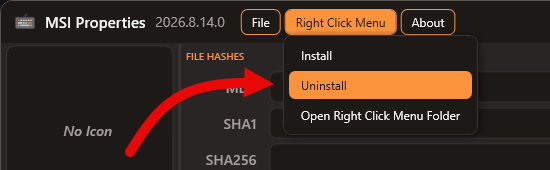
Uninstall the Context Menu Option #
Uninstall the Context Menu Option from the menu bar
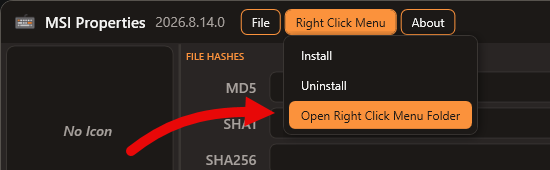
Open the Folder of the Righ Click Menu #
Open the Folder that contains the script and icon files used for the Context Menu
Example #
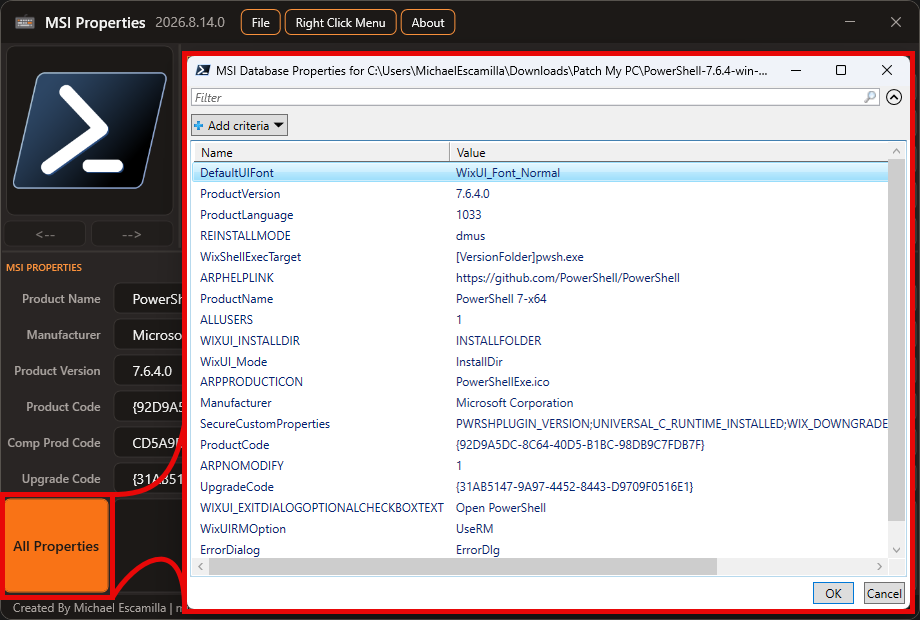
View all MSI Properties #
Easily view all the properties of the MSI Database
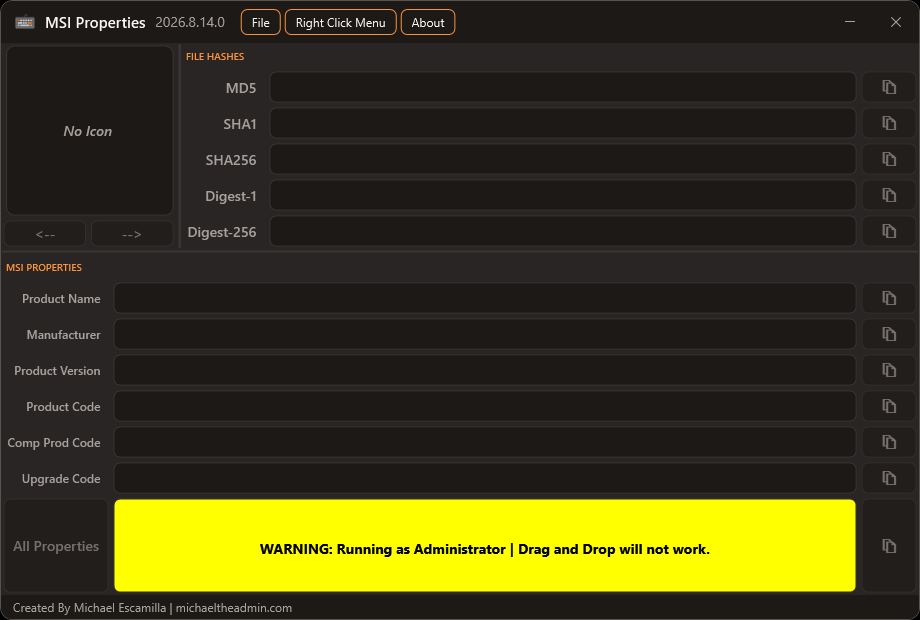
Do Not Run as Admin #
The Drag and Drop events will not work when ran as administrator. Run the script without elevated Priveledges.
Credit #
Got the inspiration from Andrew Jimenez GetMSIInfo
https://github.com/asjimene/GetMSIInfo